Markdown Extensions
mbr uses pulldown-cmark with all extensions enabled, plus additional features for richer content.
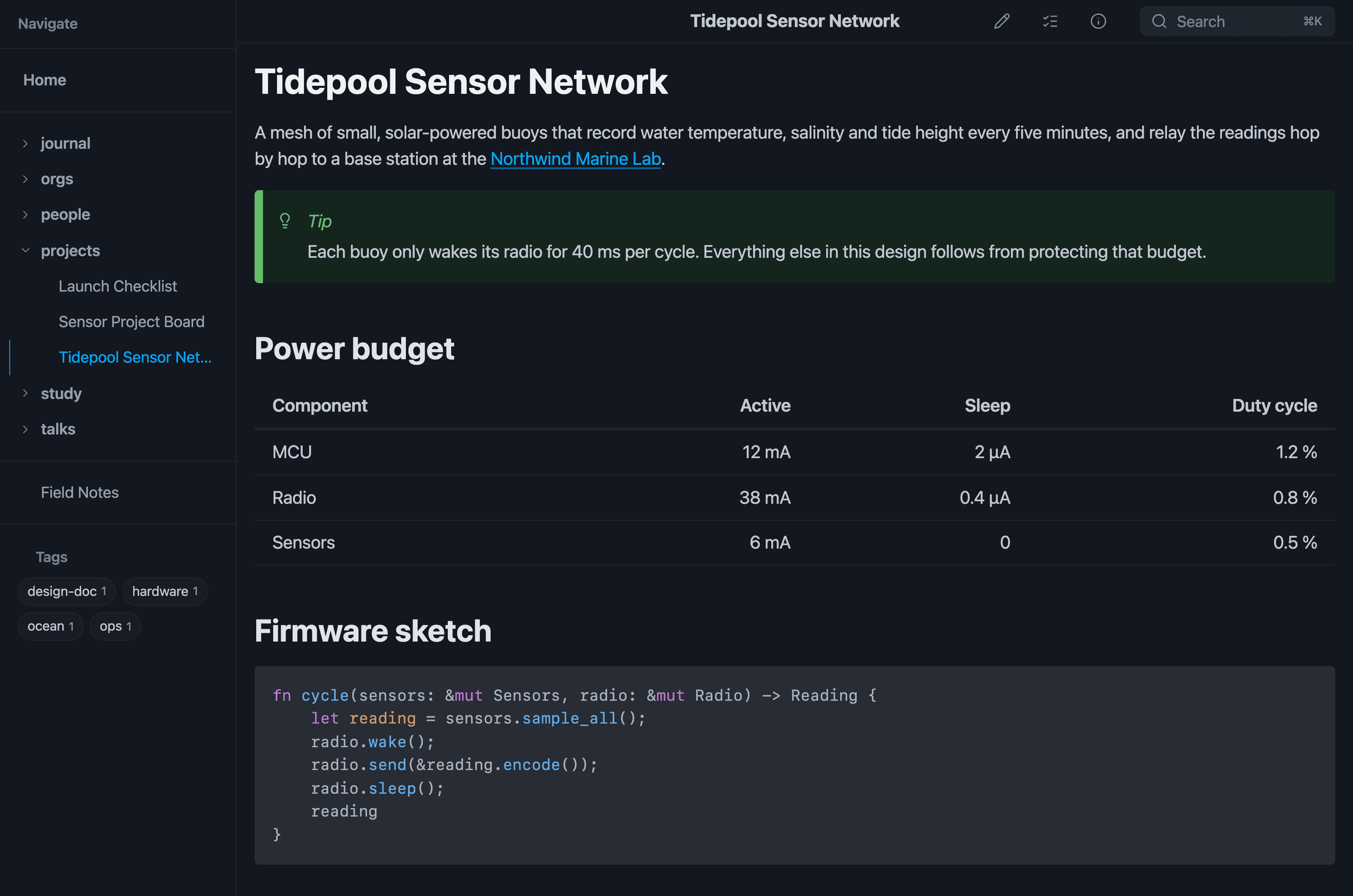
Callouts, tables and highlighted code, here in dark mode.
Standard Extensions
These are pulldown-cmark’s built-in extensions:
| Extension | Syntax | Example |
|---|---|---|
| Tables | GFM tables | | Col1 | Col2 | |
| Footnotes | [^1] references | Text[^1] + [^1]: Note |
| Strikethrough | ~~text~~ | |
| Task lists | - [ ] / - [x] | Checkboxes in lists |
| Smart punctuation | "quotes", -- | Curly quotes, em-dashes |
| Heading attributes | # Title {#id} or # Title {.myclass} | Custom anchor IDs or classes |
| Definition lists | Term on one line, : Definition on the next | Rendered as a click-to-expand FAQ; a flashcard deck on a type: flashcard page |
| Autolinks | <https://...> | Clickable URLs |
| Math | $...$ / $$...$$ | LaTeX via KaTeX |
| Wikilinks | [[Doc Filename]] | Links to “Doc Filename.md” — resolved in the current folder first, otherwise the first match in any folder (Obsidian-style) |
When several notes answer to one wikilink name, mbr picks the first (lexicographically smallest URL) and reports the ambiguity in the page-problems panel of the page containing the link — the only place that can say which note that link reached, since resolution is current-folder first. See Data problems mbr reports.
YAML Frontmatter
Add metadata to any markdown file:
---
title: My Document
description: A helpful guide
tags: documentation, guide
date: 2025-01-09
author: Your Name
custom_field: Any value
---

# Content starts here
Using Frontmatter
Frontmatter powers:
- Page titles: Browser tab and heading
- Descriptions: Search results and previews
- Tags: Navigation and filtering
- Custom fields: Available in templates
- Special page types: like slides or person
- Page styles:
styleandtypeset the body class that restyles the whole page
Supported Fields
| Field | Purpose |
|---|---|
title | Page title |
description | Meta description |
tags | Comma-separated tags |
date | Publication date |
author | Author name |
type | Note type; also becomes a body class |
style | Display style(s) applied as body classes |
| Any field | Available via frontmatter_json |
GitHub-style Alerts
Use callout boxes for important information:
> [!NOTE]
> Helpful information that users should know.
Available box types: [!NOTE], [!TIP], [!IMPORTANT], [!WARNING], [!CAUTION].
Live Examples
Helpful information that users should know, like tips for getting the most out of mbr.
Optional advice to help users succeed. Try pressing
-to open the file browser!
Key information users need to know. mbr requires no special directory structure.
Urgent info that needs immediate attention. Back up your files before bulk operations.
Advises about risks or negative outcomes. Running with
--template-folderoverrides local.mbr/settings.
remark-hint Shorthand
mbr also recognizes the remark-hint shorthand. A paragraph that begins with one of these markers is rendered as the matching GitHub-style alert, with the marker stripped from the displayed text:
| Marker | Renders as |
|---|---|
!> | Tip |
?> | Warning |
x> | Caution |
!> A helpful tip.
?> Something to watch out for.
x> A risky operation.
This shorthand is always on (no configuration required). The marker must appear at the very start of a paragraph and be followed by a space; otherwise the text is left untouched.
Tasks
mbr extends GitHub’s task lists with two extra markers and a small set of annotations, all of which render as chips, pills and dots rather than as raw text. The same syntax feeds the task browser, which finds every task in the repository and lets you filter and group them.
Markers
| Marker | Status | Meaning |
|---|---|---|
- [ ] | Open | Not done yet |
- [x] | Done | Completed (- [X] works too) |
- [-] | Canceled | Abandoned — struck through, and never counted in a progress bar |
- [>] | Canceled | Moved somewhere else; see move markers |
Any list bullet works — -, *, +, 1. or 1) — and a task may be
indented under another one. Nested tasks are treated as independent tasks: mbr
does not roll a parent’s progress up from its children.
- [ ] Unchecked task
- [x] Completed task
- [-] Canceled task
* [ ] Parent task
	* [ ] A subtask, counted on its own
Live Example
- Write documentation
- Set up project structure
- Use complex build system (not needed!)
Annotations
Annotations may appear anywhere in a task’s text. They are lifted out of the displayed text and rendered as their own elements, so the line stays readable.
| Syntax | Meaning | Notes |
|---|---|---|
@due(<date>) | Due date | Rendered as a calendar chip |
@done(<date>) | Completion time | Rendered as a ✓ chip |
#tag | Tag | A–Z, a–z, 0–9, _ and -; must follow a space or start the text |
!! | High priority | An orange dot |
!!! | Urgent | A red dot; wins over !! |
- [ ] Write the report !! #work @due(2026-08-05)
- [x] File the receipts #admin @done(2026-08-04 12:11 PM)
- [ ] Ship the release !!! #release @due(2026-08-04 15:00)
Live:
- Write the report #work
- File the receipts #admin
- Ship the release #release
A few rules worth knowing:
#tagneeds whitespace in front of it. That is what keepspage.md#anchorfrom becoming a tag.!!needs whitespace on both sides (or the end of the line), sowow!!is emphasis, not a priority.- A tag is one word.
#in-progressand#in_progressare tags;#in progressis the tag#infollowed by the word “progress”. - There is no low priority. Normal is the default and draws no dot.
Date formats
@due(...) and @done(...) take the same grammar:
| Form | Example |
|---|---|
| Date only | @due(2026-08-05) |
| Date + 24-hour time | @due(2026-08-05 15:00) |
| Date + 12-hour time | @due(2026-08-05 03:00 PM) |
Dates are naive and local: mbr does no timezone conversion and no UTC
round trip, so 2026-08-05 09:00 means nine in the morning wherever you are.
A due date with no time is treated as the start of that day, and a task is
overdue only once that whole day has passed — a task due today at 09:00 still
reads as “Today” at five in the afternoon.
An annotation whose contents are not a date is not an annotation.
@due(next tuesday)stays in the text exactly as written, so a mistyped date shows up as your typo rather than as a task that quietly lost its deadline.
Move markers
When a task moves to another note — most often a dated daily note — record
where it went with a trailing > DATE, and where it came from with a trailing
< DATE:
- [>] Draft the agenda > 2026-08-06
- [ ] Draft the agenda < 2026-08-04
Both markers are stripped from the displayed text. The > form marks the task
canceled (it lives somewhere else now) and its destination date is kept and
shown as a → chip; the < form is recognised only so it does not clutter the
display, and is otherwise discarded.
Where tasks are and are not found
The task browser scans markdown files line by line and skips fenced code
blocks, indented code blocks, HTML blocks and YAML frontmatter — so a - [ ]
inside an example like the ones above is documentation, not a task.
Editing tasks
With editing enabled, checkboxes in a rendered page become
clickable: a left click completes or reopens a task, and a right click cancels
it. Only the marker byte (and the @done(...) stamp) is rewritten; your
indentation, bullet style, spacing, other annotations and line endings are left
exactly as you wrote them. See the
task browser for the same thing from the
panel, and
tasks_stamp_done for the stamp.
Chat Transcripts
A ```chat code block renders a conversation as speech bubbles, in the
format of the Obsidian Chat View plugin:
Lunch at noon?
Sounds good
See Chat Transcripts for the full syntax.
Pull Quotes
Use double >> for emphasized quotations:
>> This important quote stands out from the surrounding text.
Live Example
The goal of mbr is simple: take any collection of markdown files and make them instantly browsable, searchable, and publishable – without requiring special syntax or directory structures.
Pull quotes render with larger font size, italic styling, and a distinctive left border.
Marginalia (Sidenotes)
On wide screens, marginalia appear in the right margin. On narrow screens, they appear as a dagger (†) that reveals content on hover/click.
Use triple >>> for margin notes:
Main paragraph text that readers focus on.

>>> This aside provides supplementary context.

Continuation of the main content.
Live Example
mbr’s marginalia feature is inspired by Tufte CSS and academic publishing traditions where sidenotes provide additional context without interrupting the flow of the main text.
Edward Tufte popularized sidenotes in his books on data visualization. They allow readers to absorb supplementary information at their own pace.
Mermaid Diagrams
Code blocks with mermaid language render as diagrams:
```mermaid
graph LR
    A[Start] --> B{Decision}
    B -->|Yes| C[Result 1]
    B -->|No| D[Result 2]
```
Renders as:
graph LR
    A[Start] --> B{Decision}
    B -->|Yes| C[Result 1]
    B -->|No| D[Result 2]
Supported Diagram Types
- Flowcharts (
graphorflowchart) - Sequence diagrams (
sequenceDiagram) - Class diagrams (
classDiagram) - State diagrams (
stateDiagram) - Gantt charts (
gantt) - Pie charts (
pie) - And more…
Layout and Look
mbr renders diagrams with the dagre layout and the classic look. Mermaid 12
made ELK and the neo look its defaults; mbr keeps the earlier ones so that
existing diagrams do not change shape or colour, and because dagre is the faster
layout. A single diagram can opt in with Mermaid’s own front matter:
```mermaid
---
config:
  layout: elk
  look: neo
---
graph LR
    A --> B
```
See Mermaid documentation for full syntax.
Math with KaTeX
mbr supports mathematical notation using KaTeX, rendered from LaTeX syntax.
Inline Math
Wrap expressions in single dollar signs for inline math:
The quadratic formula is $x = \frac{-b \pm \sqrt{b^2 - 4ac}}{2a}$ which solves $ax^2 + bx + c = 0$.
Renders as: The quadratic formula is x = \frac{-b \pm \sqrt{b^2 - 4ac}}{2a} which solves ax^2 + bx + c = 0.
Display Math
Use double dollar signs for block-level equations:
$$
\int_{-\infty}^{\infty} e^{-x^2} dx = \sqrt{\pi}
$$
Renders as:
\int_{-\infty}^{\infty} e^{-x^2} dx = \sqrt{\pi}
More Examples
Matrices:
\begin{pmatrix} a & b \\ c & d \end{pmatrix} \begin{pmatrix} x \\ y \end{pmatrix} = \begin{pmatrix} ax + by \\ cx + dy \end{pmatrix}
Summations and products:
\sum_{n=1}^{\infty} \frac{1}{n^2} = \frac{\pi^2}{6}
See the KaTeX documentation for the full list of supported LaTeX commands.
Syntax Highlighting
Code blocks are highlighted using highlight.js:
Live Examples
fn main() {
    let message = "Hello from mbr!";
    println!("{}", message);
}
def greet(name: str) -> str:
    """Return a friendly greeting."""
    return f"Hello, {name}!"
const render = async (markdown) => {
  const html = await mbr.parse(markdown);
  document.body.innerHTML = html;
};
Supported Languages
bash, javascript, typescript, python, ruby, rust, go, java, json, yaml, toml, html, css, sql, markdown, and many more.
Tables
GFM-style tables with alignment:
| Left | Center | Right |
|:-----|:------:|------:|
| A    |   B    |     C |
| D    |   E    |     F |
| Left | Center | Right |
|---|---|---|
| A | B | C |
| D | E | F |
Footnotes
Add references that link to notes:
Here is a statement that needs citation[^1].

[^1]: This is the footnote content.
Live Example
mbr uses pulldown-cmark for markdown parsing1, which provides excellent CommonMark compliance and performance2.
Footnotes appear at the bottom of the page. On desktop (hover-capable devices), hovering a footnote reference shows a preview card with the note’s content; clicking still jumps to the definition at the bottom.
Definition Lists (FAQ Style)
Definition lists render as an FAQ. Each term becomes a question you can open, and its definition stays collapsed until you do:
What is mbr?
: A markdown browser, previewer and static site generator.

Does this need JavaScript?
: No. The expand and collapse are pure CSS.
Live Example
- What is mbr?
- A markdown browser, previewer and static site generator. Click the question above to toggle this answer.
- Where do I read more?
- Start with the Quickstart, then the CLI Reference.
- Can one question have several answers?
- Yes — repeat the
:line. - Every answer of that question opens together.
Leave a Blank Line Between Entries
This is the one gotcha worth knowing. Without a blank line, the next term is swallowed as a lazy continuation of the previous definition:
First question?
: First answer.
Second question?          <-- becomes part of the FIRST answer's text
: Second answer.
Written that way you get one question with three answers instead of three questions. Separate every entry with a blank line:
First question?
: First answer.

Second question?
: Second answer.
An empty answer (a : with nothing after it) followed by a blank line ends
the whole list, as an empty list item does: the next question starts a new
list, and a : line right after the blank line is plain text.
Behavior
- Click a question, or Tab to it, to reveal its answer. For keyboard users focus alone opens it — there is nothing to press.
- Tab again to reach links inside the answer. The answer stays open while focus is anywhere inside it.
- Links inside a closed answer are skipped by Tab and hidden from screen readers, so you never land on content you cannot see.
- A question that owns several answers opens all of them at once.
Accepted Limitations
The disclosure is CSS :focus with no JavaScript and no <details> element,
which buys two rough edges:
- Clicking an open question does not close it. The click only re-focuses a question that already has focus, and CSS cannot toggle. Clicking a different question, or anywhere off the list, does close it.
- Clicking inside an open answer closes it, because focus moves to the page body. This mostly bites when selecting an answer’s text; start the selection from the end of the question instead, or print the page.
If you need a real toggle, write literal <details>/<summary> HTML in your
markdown instead, or override the rules in .mbr/theme.css.
Printing
Print styles force every answer open and drop the disclosure markers, so a
printed page or PDF export shows the complete Q&A rather than a list of
unanswered questions. The same goes for the rest of the page: collapsed heading
sections, clipped link cards and closed <details> blocks are all expanded
before printing — see Printing for the
full list and for the browser-version caveat on <details>.
Restyling
Colors, spacing, the marker and the animation are all driven by --mbr-dl-*
custom properties — see
Definition Lists in CSS Theming.
Heading Anchors
Headers automatically get anchor IDs:
## My Section
Links to #my-section. Override with explicit IDs:
## My Section {#custom-id}
Section Attributes
When enable_sections is active (default for server/GUI mode), horizontal rules (---) divide content into <section> elements. You can add attributes to the following section by placing an attribute block after the rule:
--- {#intro .highlight}

This content is in a section with id="intro" and class="highlight".

--- {.slide data-transition="fade"}

This section has class="slide" and a custom data attribute.

---

Plain section (no attributes).
Attribute Syntax
The attribute block follows pulldown-cmark’s heading attributes syntax:
| Syntax | Result | Example |
|---|---|---|
#id | ID attribute | {#intro} → id="intro" |
.class | CSS class | {.highlight} → class="highlight" |
key=value | Custom attribute | {data-x=y} → data-x="y" |
key="value" | Quoted value | {title="Hello World"} |
Multiple attributes can be combined:
--- {#section-1 .slide .center data-transition="slide" data-background="#fff"}
Use Cases
Presentation slides: Add Reveal.js-style attributes for slide transitions and backgrounds.
Styling: Target specific sections with CSS using IDs or classes.
JavaScript hooks: Add data attributes for interactive behavior.
Live Example
This section has id="demo-section" and class="highlighted-section". Inspect the HTML to verify!
Back to a plain section.
Auto-linking
URLs in angle brackets become clickable:
<https://example.com>
<user@example.com>
See Also
- Media Embedding - Videos, audio, PDFs, and more
- Task Browser - Find, filter and complete tasks across the repository
- Relationships & Genealogy - Typed frontmatter relationships and family trees
- Contacts - People and organizations with a contact card, labeled phones/emails/addresses and partial dates
- Page Styles and Types - Restyle a whole page with
styleandtypefrontmatter - Presentation Slides - Create slide presentations from markdown
- Chat Transcripts - Conversations as speech bubbles with a
chatcode block - Flashcards - Turn definition lists into a flashcard deck, with spaced repetition
- Slides Example - A live example presentation
Footnotes
pulldown-cmark is a Rust library that parses markdown to events, allowing flexible rendering.
The library uses SIMD optimizations for faster text processing.