Task Browser
Press t — or click the checklist icon in the header — to open the task
browser: a two-pane view of every task in the repository, filtered and grouped
however you need to look at them today.
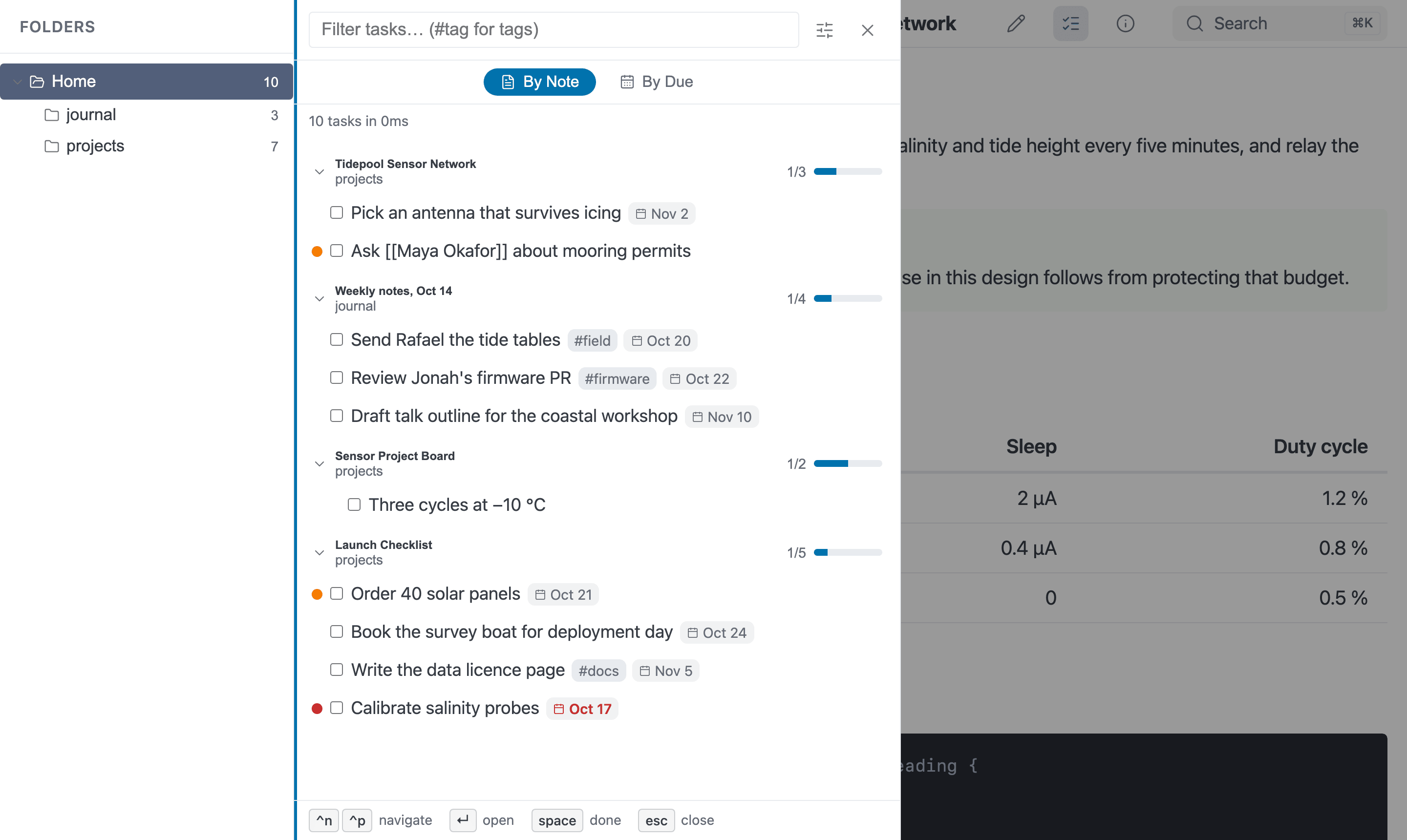
The task browser (t), grouped by note. The overdue date is shown in red.
The syntax it reads is documented in Markdown Extensions: the four
markers, @due(...), @done(...), #tag and the !! / !!! priorities.
Nothing here requires any change to your notes — if you already write
- [ ] something, you already have a task list.
The task browser is server and GUI only (
mbr -s,mbr -g). Its index is built by reading live files, which a static build has no way to do, so a built site has no task panel and no/.mbr/tasksendpoint. See Applicability below.
Layout
┌─ folders ────┬─ [filter field.....................] [filters]   ─┐
│ v  Home   42 │        ( category | calendar )                    │
│   > docs  12 │  ┌──────────────────────────────────────────────┐ │
│   > notes 30 │  │ Weekly notes            3/7 ▓▓▓░░░░          │ │
│              │  │   docs/notes                                 │ │
│              │  │  ● [ ] write the report  #work  [Aug 5]       │ │
│              │  │    [ ] follow up                             │ │
└──────────────┴──┴──────────────────────────────────────────────┘ │
Left pane — folders. The whole repository as a tree, each folder carrying the number of matching tasks in it and everything below it. Selecting a folder scopes the results to it and its subfolders; selecting Home clears the scope. The counts ignore the folder selection on purpose, so picking one folder never empties out the siblings you might want to switch to.
Right pane — results. A filter field, the two mode tabs, and the task list.
Where it opens
The panel opens where you already are. The folder of the note you pressed t
on starts selected — with the tree expanded down to it — so the first thing you
see is the work nearest to what you were reading, not the top of the
repository. Selecting Home widens to everything, and one click on any other
folder goes wherever you meant to go instead.
If that folder has nothing matching in it, the panel widens to the whole repository by itself rather than opening on an empty list. That happens only on the way in: once you are in, a folder you pick yourself stays picked even when it turns up empty.
The Show filter widens the same way, and the two are tried in order: first what counts as an entry, and only then the folder scope — giving up the folder you were standing in is the bigger change of subject, so it goes last.
Opening from the home page or a section page — neither of which is a file — starts unscoped, exactly as it always has.
The two modes
By Note (the default)
One heading per file, tasks in the order they appear in it. The heading is the note’s title, with its folder underneath in smaller type, and clicking it opens that note.
The note you opened the panel from is pinned to the top of the list, so its tasks are the first ones you see; everything else keeps the server’s order below it. Calendar mode does not pin — a heading there is a date, not a file.
The x/y and progress bar on the right count every task in the file,
including ones the current filter has hidden — so a file showing you one
matching task can still read 3/7. That is deliberate: the number answers “how
far along is this note?”, not “how much of what I am looking at is done?”.
By Due
One heading per due-date bucket, in this order:
| Bucket | Contains | Progress bar |
|---|---|---|
| Overdue | Due on a day that has already passed | No — a backlog has no useful denominator |
| Today | Due today | Yes |
| Tomorrow | Due tomorrow | Yes |
| Upcoming | Everything later, with a subheading per date | Yes, on “Upcoming” as a whole |
| No due date | Everything undated | No |
Here the x/y counts everything matching your filters except the status
filter, so turning “Complete” on and off moves tasks in and out of the list
without moving the progress bar.
Canceled tasks are ignored entirely in calendar mode — they do not appear, do not count, and cannot create a bucket. A canceled task has no meaningful deadline.
Filtering
Type in the filter field to narrow by text. Bare words match the task’s text
or one of its tags, several words are ANDed together, and a #tag token
matches tags only:
| Query | Matches |
|---|---|
report | Any task whose text contains “report”, or tagged #report… |
the report | Tasks matching both words |
#work | Tasks tagged #work (prefix match, so #wo finds it while you type) |
report #work | Both conditions |
The filter-options button (sliders) opens the rest of the filters:
-
Status — a multi-select of Incomplete / Complete / Canceled. It starts on Incomplete only, and the last box cannot be cleared (an empty selection means “incomplete” to the server, which would be confusing to look at).
-
Priority — Normal, High, Urgent. Empty means all.
-
Due — Any, Overdue, Due today, Due tomorrow, Upcoming, or No due date.
-
Show — Tasks only (the default), Markers only, or Tasks + markers. See Incomplete markers. Greyed out in By Due, which lists tasks only.
It starts on Tasks only so the list is your checkboxes and not a mix of those and every
TODO:in the repository. If that finds nothing — a repository whose work is all written as markers, say — the panel widens to Tasks + markers by itself rather than opening on “No tasks match these filters”, and moves the control to match, so what you see is always what the filter says. It widens at most once, and never once you have set Show yourself: your choice stays put even when it selects nothing.A repository can change the starting position with the
tasks_default_includeconfig option.
The folder scope is the one filter that does not start empty: it starts on the folder of the note you were reading (see Where it opens).
Every filter change is a fresh query; nothing is filtered in the browser, so the counts and the list can never disagree.
Keyboard
The panel is driven the same way search is, so it should feel familiar.
| Key | Action |
|---|---|
t | Open the panel |
Ctrl+n / Ctrl+p, ↓ / ↑ | Move between tasks and headings |
Enter | Open the focused task in its file (or collapse/expand a focused heading) |
Space | Complete ↔ reopen the focused task (editing only) |
x | Cancel ↔ reopen the focused task (editing only) |
← / → | Collapse / expand the focused group |
Tab | Switch between the folder pane and the results pane |
Ctrl+d / Ctrl+u | Scroll the active pane half a page |
Ctrl+f / Ctrl+b | Scroll the active pane a full page |
Esc | Close the filter options, then the panel |
Typing goes to the filter field, which keeps focus the whole time. Space,
x, ← and → only take over once you have moved onto a task with the arrow
keys — and any keystroke in the filter field hands them back — so filtering for
“buy milk” works exactly as you would expect. Space and x stay with the
field on a heading and on an incomplete marker, neither
of which has a status to change.
Jumping to a task
Enter (or a click on the task’s text) opens the note it lives in and scrolls
straight to the line, clear of the sticky header, with a brief highlight so you
can see which one you came for. The link is an ordinary fragment
(/docs/notes/#mbr-task-42, or #mbr-marker-42 for an incomplete
marker), so it can be bookmarked, shared, or opened in a
new tab.
Toggling a task
With editing enabled, tasks can be completed from either place:
- In the panel: click a checkbox, press
Space, or pressxto cancel. Right-clicking a checkbox cancels too. - In the document: left-click a rendered checkbox to complete or reopen it; right-click to cancel.
The card or checkbox moves immediately and the change is written to the file behind it. If the write is refused, it moves back and tells you why — most usefully when the note has changed somewhere else since the page was rendered (on disk, in another editor, or on another device — anywhere in the note, since an added line moves every task below it), in which case nothing is written: a checkbox in the document offers to reload the page for the latest version, and the panel refreshes its list so you can try again. On a vault the server has to fetch from the cloud first (the iOS app over iCloud), a note that is still downloading says so; try again in a moment.
The page does not reload for your own toggle. A @done(...) chip appears
(or disappears) in place, your scroll position and the panel’s filters survive,
and on a server that requires an edit
token the token — which is kept in memory
only — is still there for the next click.
Only the marker byte and the @done(...) stamp are rewritten. Indentation,
bullet style, spacing, your other annotations, the line’s ending (a CRLF file
stays CRLF) and the presence or absence of a trailing newline are all preserved.
See tasks_stamp_done to turn the
stamp off, and In-Browser Editing for the
endpoint behind it.
Without editing enabled, the checkboxes stay inert and Space / x stay
unbound — no control appears that cannot do anything.
Incomplete markers
Not every loose end gets a checkbox. A sentence like
The market fell 10% (source: TK).
is unfinished work too, and the panel lists it beside your real tasks.
Any line containing one of the incomplete_markers — TK, TODO, FIXME or
XXX by default — becomes a marker entry. Matching happens anywhere in
the line, not just at the start, and is case-sensitive and word-boundaried, so
TODO matches but Tomato and todo do not.
Markers are skipped where the word is obviously not a note to self:
- inside inline code spans —
`TODO`is documentation, not a task - inside fenced and indented code blocks
- in the target of a
[[wikilink]](the alias half is ordinary text, so it still counts) - in a link or image destination or title
- in link reference definitions, and in YAML frontmatter
A line is only ever one entry. - [ ] TODO: ship it is a task, never also
a marker — the checkbox wins.
They are read-only
A marker is a pointer at a line, not a state you can change. There is no
checkbox on its card — not a disabled one, none at all — and Space and x do
nothing to it, staying with the filter field the way they do on a heading. There
is no marker byte in the file to rewrite, so the write endpoint refuses one
outright.
Everything else about the card follows from that: a marker’s text is the whole
source line verbatim (#tags, !! and @due(...) are neither parsed nor
stripped, because a marker has no annotation grammar), it carries no tag pills
or date chips, and its priority is always normal.
Inside that line, the marker word itself — and only the marker word — carries
the same highlight the rendered page gives it, so a card and the paragraph it
points at read as the same thing. The server sends the word’s position along
with the text, so the card highlights exactly the occurrence that made the line
a marker: in Set `TODO` in config and TK fix it the backticked TODO is
code, and it is the TK that lights up.
Where they appear, and where they do not
| By Note | Yes — in source order, among that note’s tasks |
| By Due | Never. A marker has no due date, so no bucket could hold one; the Show filter is greyed out and pinned to “Tasks only” there, and your choice comes back when you switch to By Note |
| Progress counters | Never counted. A note’s x/y and its bar describe its checkboxes alone, so a stray TODO: cannot make a finished note look unfinished |
| Folder counts | Counted — they are real matches |
Clicking one jumps to its line and flashes it, exactly as a task does. The
fragment is #mbr-marker-42 rather than #mbr-task-42, because the anchor
lives on the highlight instead of on a checkbox.
Turning them off
Markers in the panel follow the same switch as the highlighting on the page:
mark_incomplete.
With it off there is no highlight and therefore no anchor to link to, so there
are no markers in the panel either — mbr -s --no-mark-incomplete gives you
back a panel of checkboxes only. Setting incomplete_markers = [] does the same
thing.
For the highlighting itself — the two shapes of wash, the exact match rule, and
the id="mbr-marker-{line}" anchor — see Incomplete-Marker
Highlighting.
Configuration
| Option | Default | Effect |
|---|---|---|
tasks_enabled | true | Turn the panel and its endpoint off (--no-tasks) |
tasks_stamp_done | true | Maintain @done(...) when a task is completed |
tasks_default_include | "tasks" | Where the Show filter starts: "tasks", "markers" or "all" (config/env only) |
tasks_ignore_globs | [] | Folders whose tasks the panel ignores (config/env only) |
mark_incomplete | server/GUI on | Also gates incomplete markers in the panel (--no-mark-incomplete) |
incomplete_markers | ["TK", "TODO", "FIXME", "XXX"] | Which words count as a marker |
See Task Settings and Incomplete-Marker Highlighting for the details.
Hiding a folder from the panel
A folder of checklist templates is the usual problem: dozens of permanently
unchecked boxes that are nobody’s actual work, crowding out the real ones. Name
its contents in tasks_ignore_globs:
# .mbr/config.toml
tasks_ignore_globs = ["templates/**"]
Matching files are left out of the index the panel is built from, so they vanish from all of it at once — the list, the folder pane, and every count.
The documents themselves are untouched: they still render, still show their
checkboxes, and those checkboxes still toggle when editing is on. The panel is a
view over your tasks, not the definition of them. Patterns match a file’s
repository-relative path, so use templates/** (the folder’s contents), not
templates; see
Task Settings for the full pattern
rules.
Why not in static builds
Tasks are a live view. The index is built by reading the markdown files as they are now, and it is kept current by the same file watcher that drives live reload — so it has meaning only where those files exist and can change. A static build is a snapshot; a task list frozen into one would start lying the moment somebody ticked a box. Built pages therefore ship no task chunk at all, and the panel’s trigger renders nothing.
The task syntax is unaffected: priority dots, tag pills and date chips are a markdown extension and render everywhere, static builds included.
Cost when you do not use it
None worth measuring. The index is built lazily on the very first task query and
never at startup, holds only the files that actually contain tasks, and is then
kept fresh per-file by the watcher. A server whose user never presses t never
reads a file for it.
The first query on a very large repository pays one sequential pass over the
markdown; it reports scan_in_progress while the repository scan is still
running, and the panel shows partial results in the meantime rather than making
you wait.
See Also
- Task syntax — markers, annotations and date formats
- Incomplete-Marker
Highlighting —
how
TK/TODOare matched and highlighted on the page - In-Browser Editing — enabling writes
- Keyboard Shortcuts
- Configuration Reference