Media Embedding
mbr extends the standard image syntax to support rich media embedding.
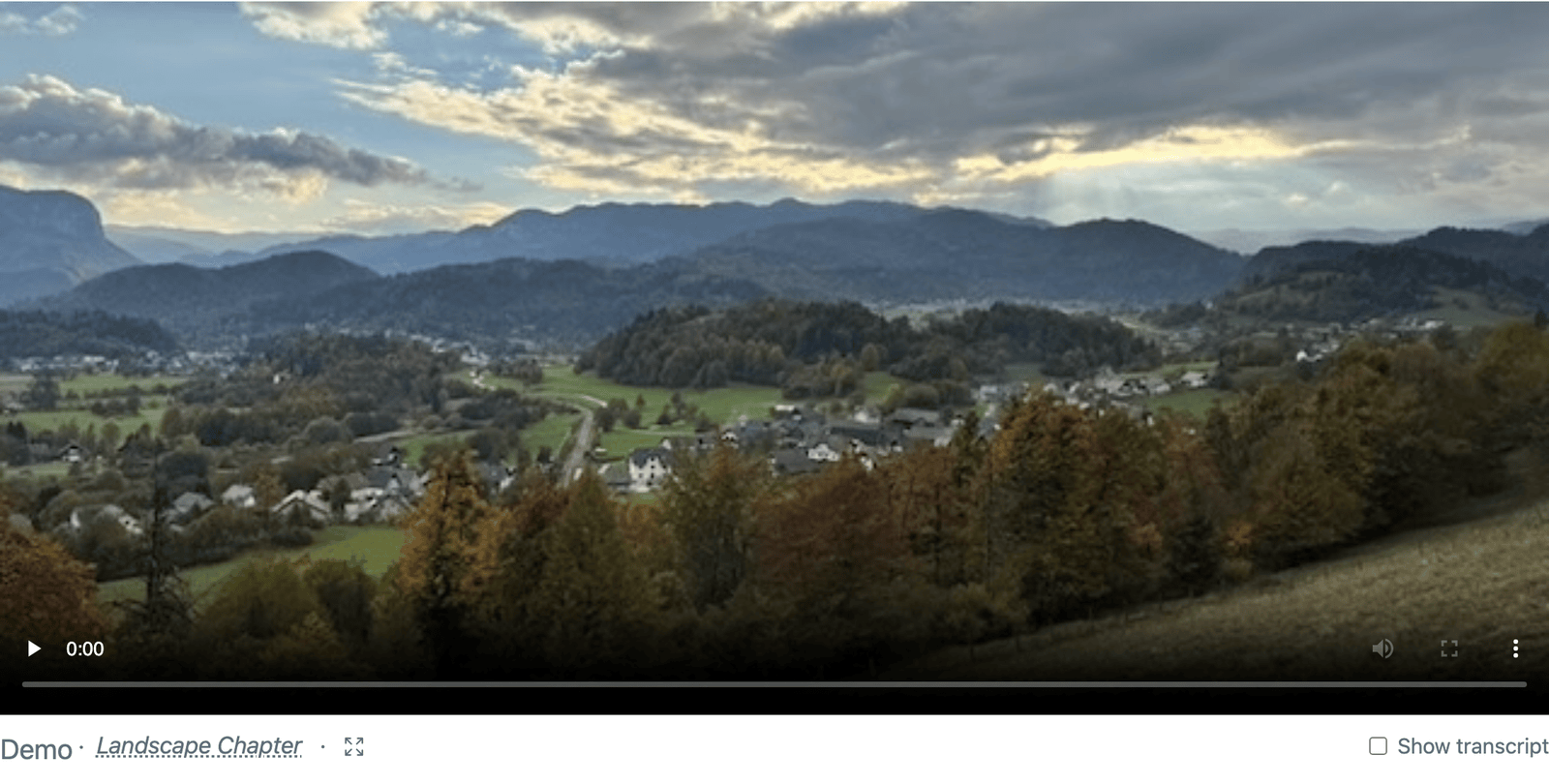
A video embedded with plain image syntax, with chapters and a transcript.
Image Syntax for Media
The standard image syntax  auto-detects media types:
 <!-- Renders as image -->
 <!-- Renders as video player -->
 <!-- Renders as audio player -->
 <!-- Renders as PDF viewer -->
mbr detects the type from the file extension.
Video Embedding
Supported Formats
- MP4 (
.mp4) - MPEG (
.mpg,.mpeg) - AVI (
.avi) - OGV (
.ogv) - OGG (
.ogg) - M4V (
.m4v) - WebM (
.webm)
Basic Video

Renders a native HTML5 video player with:
- Play/pause controls
- Volume control
- Fullscreen button
- Progress bar
Video with Timestamp
Specify start and end times:

Format: #t=START,END where times are in seconds. A hyphen (#t=START-END) is also accepted as an equivalent separator.
More examples:


Automatic Caption/Chapter Detection
If present alongside the video, mbr auto-detects:
videos/
├── demo.mp4
├── demo.mp4.captions.en.vtt    # Auto-loaded as captions
└── demo.mp4.chapters.en.vtt    # Auto-loaded as chapters
Interactive Transcript
When captions are available, a “Show transcript” toggle appears below the video. The transcript displays all caption text with visual indicators:
- Active line - Highlighted background showing current playback position
- Past lines - Slightly dimmed for lines already played
- Auto-scroll - Transcript automatically scrolls to keep the active line centered
Clicking any line in the transcript jumps the video to that point and starts playback. The cursor changes to a pointer on hover, but there are no other visual indicators that the text is clickable.
When both chapters and captions exist, chapter titles appear as bold headers within the transcript at their appropriate positions. Clicking a chapter header jumps to that chapter.
Audio Embedding
Supported Formats
- MP3 (
.mp3) - WAV (
.wav) - OGG (
.ogg) - FLAC (
.flac) - AAC (
.aac) - M4A (
.m4a) - WebM (
.webm)
Basic Audio

Renders an HTML5 audio player with:
- Play/pause
- Progress bar
- Volume control
- Time display
YouTube Embedding
Automatic Detection
YouTube URLs in image syntax become embedded players:

Supported URL Formats


All render as responsive embedded iframe players.
Privacy-Enhanced Mode
YouTube embeds use youtube-nocookie.com by default for better privacy.
Giphy Embedding
Giphy URLs on their own line are automatically embedded as animated GIFs.
Supported URL Formats
Both the Giphy page URL and direct media URLs work:
 https://giphy.com/gifs/season-17-the-simpsons-17x6-xT5LMB2WiOdjpB7K4o

 https://media.giphy.com/media/xT5LMB2WiOdjpB7K4o/giphy.gif
Both render the same animated GIF:

How It Works
- Page URLs (
giphy.com/gifs/...) - mbr extracts the ID and converts to a media URL - Media URLs (
media.giphy.com/...,i.giphy.com/...) - embedded directly
No network fetch is required - Giphy URLs are detected and rendered instantly.
PDF Embedding

Renders an inline PDF viewer using the browser’s built-in PDF support.
PDF Sizing
PDFs render at full width with a reasonable height. Customize with CSS:
/* .mbr/user.css */
object[type="application/pdf"] {
  height: 800px;
}
PDF Cover Images
mbr can extract cover images (first page) from PDF files, useful for creating visual thumbnails or link previews.
Using PDF covers in markdown:

This renders the first page of document.pdf as a PNG image.
How it works:
| Mode | Behavior |
|---|---|
| Server/GUI | Cover images are generated on-the-fly when requested |
| Static Build | Pre-generate covers before building (see below) |
Pre-generating covers for static builds:
# Extract cover from a single PDF
mbr --extract-pdf-cover document.pdf

# Extract covers from all PDFs in a directory (recursive)
mbr --extract-pdf-cover ~/docs
This creates sidecar files named {pdf}.cover.jpg next to each PDF. These files are then included in static builds automatically.
Example workflow:
<!-- Link to a PDF with a visual preview -->
[](reports/annual-report.pdf)
<!-- Gallery of PDF documents -->
| Document | Preview |
|----------|---------|
| [Budget](budget.pdf) |  |
| [Plan](plan.pdf) |  |
Note: PDF cover extraction requires the
media-metadataCargo feature. See Configuration Reference for details on the--extract-pdf-coveroption.
OpenGraph Link Enrichment
Bare URLs on their own line get enriched with metadata:
Some text here.

https://example.com/article

More text here.
mbr fetches the URL’s OpenGraph metadata:
- Title
- Description
- Preview image
And renders a rich preview card.
Requirements
- URL must be on its own line
- Blank lines before and after
- URL must be accessible (timeout: 500ms default)
Timeout Configuration
mbr -s --oembed-timeout-ms 1000 ~/notes # 1 second timeout
Or in config:
# .mbr/config.toml
oembed_timeout_ms = 1000
Disabling OpenGraph Fetching
Set timeout to 0 to disable OpenGraph fetching entirely:
mbr -s --oembed-timeout-ms 0 ~/notes
# .mbr/config.toml
oembed_timeout_ms = 0
With oembed disabled, bare URLs render as plain links. YouTube and Giphy embeds still work since they don’t require network calls.
File Organization
Relative Paths
Media paths are relative to the markdown file:
docs/
├── guide.md # 
└── images/
└── diagram.png
The same goes for raw HTML in a note. A relative URL in a quoted src, srcset, href or poster attribute, such as <img src="docs/images/hero.png" width="900"> in a README, resolves the way the equivalent markdown image or link does. In a srcset (<source srcset="hero-dark.png 1x, hero-dark@2x.png 2x"> in a <picture>) each URL is resolved and its 1x/640w descriptor kept. mbr adjusts it for the trailing-slash URL the page is served at and for static builds. A .md target in href becomes the page’s URL. Absolute URLs, #anchors, mailto:, data: and the like are left as written. Unquoted values, srcset URLs that contain a comma, and an attribute whose name and value sit on different lines are not rewritten.
Static Folder
Files in the static/ folder (configurable) are served directly:
notes/
├── static/
│ └── videos/
│ └── demo.mp4
└── guide.md # 
This concept is so mbr can work well when navigating sites setup for other static builders like zola, astro, etc. Assets in the specified static folder, if any, will be overlaid with the markdown. However, you don’t have to put anything in a static folder. Images and media can be intermingled with notes.
Absolute Paths
Use leading slash for root-relative paths:
 <!-- Always from repository root -->
Paths with Spaces
The CommonMark spec doesn’t allow unescaped spaces in a  destination — a path with bare spaces won’t be recognized as media at all and renders as plain text. Use either of these spec-native forms:
<!-- Wrap the path in angle brackets (recommended) -->

<!-- Or percent-encode the spaces -->

Both work for all media types (images, video, audio, PDFs).
Linking to a Viewer Page
Instead of embedding a file, you can link to mbr’s viewer page for it:
[Watch the demo](/.mbr/videos/?path=%2Fvideos%2Fdemo.mp4)
The pdfs, audio and images viewers work the same way — see Media Viewer
Endpoints. These routes are
addressed by their path= query rather than by a file, so mbr’s link checkers
leave them alone in both server and build mode.
Performance Tips
Video
- Use
.mp4with H.264 for best compatibility - Include multiple formats for broad support
- Consider poster images for large videos
Audio
- MP3 is universally supported
- Use appropriate bitrate (128-192kbps for speech)
Images
- Use WebP for better compression
- Provide appropriate sizes
- Use lazy loading (handled automatically)
Troubleshooting
Video Won’t Play
- Check file exists at the specified path
- Verify file extension is recognized
- Check browser console for codec errors
- Try a different format (MP4/H.264 is safest)
“Media failed to decode” on a file that looks fine
A distinctive symptom: the player shows the correct duration, then breaks the
moment you hit play, with MediaError.code === 3 (“media failed to decode”).
Because the duration was right, the file downloaded fine and its container
parsed fine — the failure is in setting up decoding.
This is a Safari/WebKit behaviour, which matters for mbr specifically because
the -g GUI window is WebKit. The same file will often play in Firefox.
One known trigger is a gpmd timed-metadata track alongside a tx3g
subtitle track. gpmd tracks carry GoPro GPMF telemetry (GPS, gyro,
accelerometer) and survive many editing and download workflows. Bisecting a
reported file in Safari isolated the interaction:
gpmd | tx3g | Result |
|---|---|---|
| absent | absent | plays |
| absent | present | plays |
| present | absent | plays |
| present | present | fails |
Neither track type causes trouble on its own — it is the combination. Also
ruled out, so don’t chase them: 4K resolution, H.264 level 5.1, total track
count, text data tracks, and embedded PNG cover art all played fine.
Be aware this combination is necessary but not sufficient: some files carrying both play without complaint, so matching it does not mean a file is broken. mbr therefore treats it as a likely cause rather than a verdict — see Playback diagnostics below.
To inspect a file yourself, look for a data stream tagged gpmd and a
subtitle stream tagged tx3g:
ffprobe -v error -show_entries stream=codec_type,codec_tag_string \
  -of csv=p=0 video.mp4
The fix is to remux, dropping the data tracks. -c copy copies the streams
as-is — no re-encode, no quality loss, and it finishes in seconds even for
multi-gigabyte files. -dn drops data tracks while keeping your subtitles:
ffmpeg -i in.mp4 -map 0 -c copy -dn -movflags +faststart out.mp4
Dropping the subtitle tracks instead also resolves the conflict, if you would rather keep the telemetry. Either way, don’t re-encode to a lower resolution hoping to fix this.
You may not have to run it yourself, though — see Automatic recovery below.
Automatic recovery
When a video really does fail, mbr tries the same repair on the fly. Nothing is written to disk and your file is not touched; mbr just serves the same media through a rebuilt container that carries only the video and audio streams.
Because a file’s track list cannot tell you whether it will play, this is
triggered by the failure rather than in anticipation of it: the browser reports a
MediaError, and only then does the player retry against the repaired stream. If
it works, the video simply starts playing, and the message under it says the
recovery was used.
Three things are worth knowing:
- It never re-encodes. Every packet is copied byte-for-byte, so there is no quality loss and no change in resolution. What changes is only which tracks the container carries.
- It needs a browser with native HLS, which in practice means Safari — and
mbr’s own
-gGUI window, which is the same engine. Chrome and Firefox cannot play the repaired stream without a JavaScript player, so there is no automatic recovery there. That lines up with the problem, since the decode failure is itself a WebKit behaviour. - It is not guaranteed. Recovery can fail for reasons of its own — an
unusual container, or a file whose problem is something else entirely. When it
does, you still get the browser’s error and the
ffmpegcommand above.
For the URL scheme, caching and performance details, see Automatic Playback
Recovery
in the configuration reference. Requires the media-metadata feature and
server/GUI mode; static builds (-b) have no recovery route, so for a published
site the permanent fix is to remux the file yourself.
Playback diagnostics
When a video actually fails to play, mbr tells you about it in two places:
- Under the video, as a message in the caption area explaining what the browser reported.
- In the ⚠ indicator in the navbar, alongside broken links and other page problems.
Both are driven by the browser’s own error, which is the only reliable signal
that a file did not play. If mbr also recognises a suspicious track combination
in that file, it adds the likely cause and a copy-pasteable ffmpeg remedy to
the message.
Because the track heuristic can match files that play perfectly well, mbr never
warns about a video before it fails. A clean page stays clean, and the ⚠
count is not inflated by guesses. This diagnosis needs the media-metadata
feature and runs in server/GUI mode only — static builds (-b) have no
errors.json, so only the in-caption browser error appears there.
Media Renders as Plain Text
If  shows up as literal text instead of media, the path likely contains spaces. Wrap it in angle brackets or percent-encode it — see Paths with Spaces.
YouTube Not Embedding
- Ensure URL is on its own line
- Check URL format matches supported patterns
- Verify video is publicly accessible
OpenGraph Not Loading
- Check URL is accessible from your network
- Increase timeout:
--oembed-timeout-ms 2000 - Verify the target page has OpenGraph meta tags