In-Browser Editing
mbr can let you edit markdown files directly from the browser while running in
server or GUI mode. It is on by default in the GUI (a private window on
your own machine, bound to 127.0.0.1) and off by default for the server
(mbr -s), which must be asked. Static builds never edit. When enabled, a pencil
button (a pencil) appears next to the info button; pressing it — or the e shortcut —
opens a Milkdown/Crepe editor for the current file.
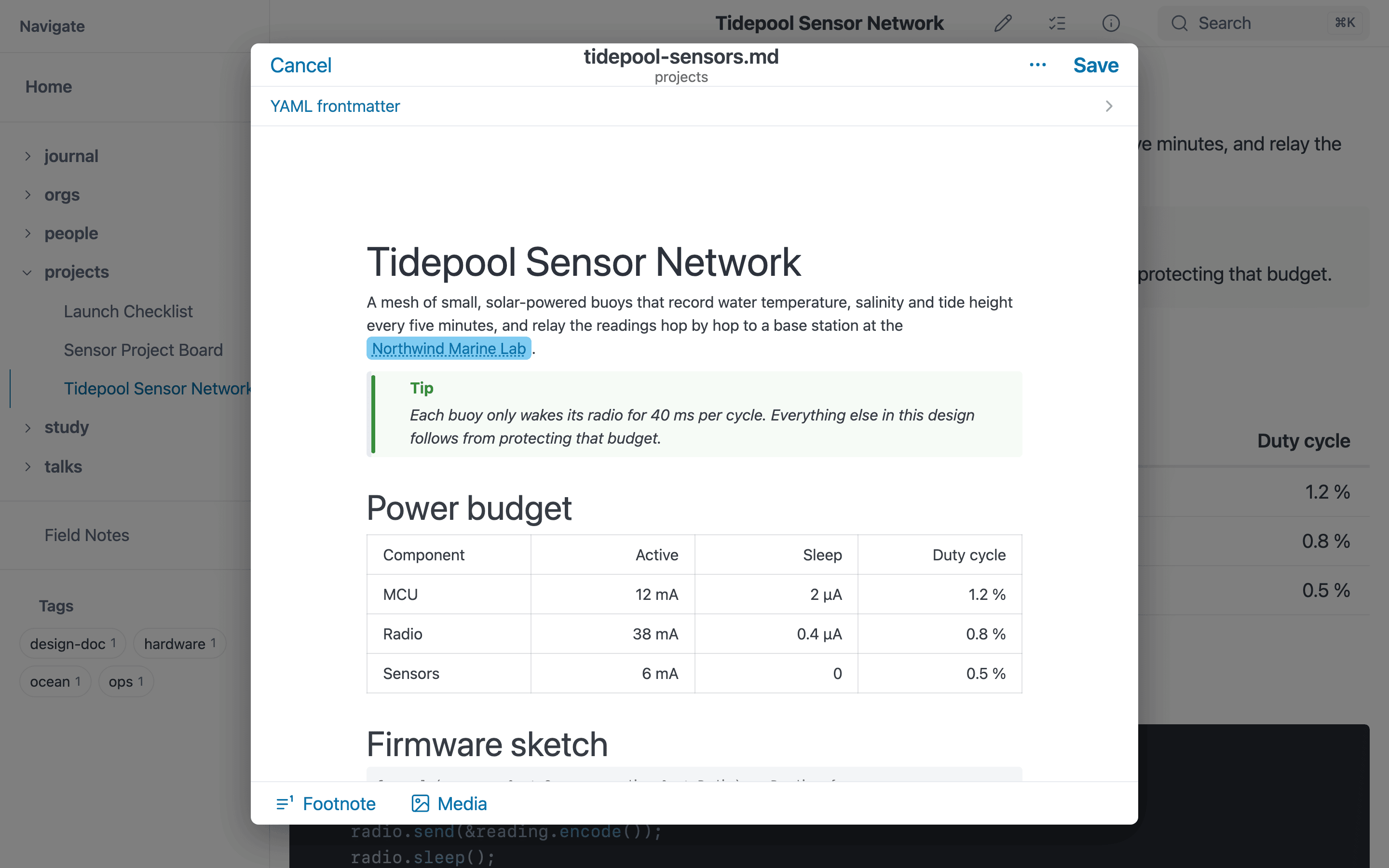
The editor (e) edits the note in place; Save writes the markdown back to disk.
Editing writes to your files. Only enable it on repositories you intend to modify, and read the security model before exposing it beyond localhost.
Enabling editing
| Mode | Default | Turn it on | Turn it off |
|---|---|---|---|
GUI (mbr, mbr -g, the app, folders opened in the window) | on | — | edit_enabled = false, MBR_EDIT_ENABLED=false or --no-edit |
Server (mbr -s) | off | --edit, edit_enabled = true or MBR_EDIT_ENABLED=true | --no-edit (beats a config that turns it on) |
Static build (mbr -b) | never | — | — |
Precedence is the usual one: a value in .mbr/config.toml beats the mode’s
default, MBR_EDIT_ENABLED beats the config file, and --edit / --no-edit
beat everything. --no-edit also covers every folder the GUI opens later
(Open…, Finder’s “Open With”).
For the server, enable it with a CLI flag:
mbr -s --edit ~/notes
or in .mbr/config.toml (which also keeps the GUI’s default explicit):
edit_enabled = true
To keep a repository read-only in the GUI too:
edit_enabled = false
On loopback (127.0.0.1), that’s all you need — local edits require no token
(they are still CSRF- and Host-checked). Note that as soon as an
edit_token_hash is configured it is required for every request, loopback
included. For remote access, see Remote editing.
Using the editor
- Open a markdown page and click the pencil button (top right) or press
e. - The editor loads the file. The body is edited in the WYSIWYG Crepe editor; any YAML frontmatter is shown above it as Properties: a form with a widget per field, plus a YAML tab for the source (see Editing Properties). An edit changes only the value you edited — comments, key order and unknown keys are kept.
- Click Save (top right) or press
Cmd+S/Ctrl+S. On success the file is written and the page reloads to show it. - Click Cancel (top left), press
Esc, or click outside the editor to close it. If you have unsaved changes you are asked whether to Save, Discard or keep editing (Cancel) — nothing is thrown away silently.
The editor is laid out like a native editing sheet at every width: Cancel on the left, the note’s name (with its folder underneath) in the middle, and a ⋯ menu plus Save on the right. The ⋯ menu holds the file actions — New note…, Rename… and Move… (see below). The bar along the bottom holds the formatting tools that are not in Crepe’s own menus: Footnote and Media. On a phone the editor fills the screen, and the path pickers open as sheets from the bottom.
mbr syntax in the editor
The editor reads mbr’s markdown with the renderer’s rules, so what you see while editing is the structure the page will have, and it writes each construct back the way it was typed:
- Definition lists (flashcards, FAQs):
Termthen: definition, with nested lists, code and further paragraphs indented two spaces. They stay expanded while editing. Enter in a term starts its first definition; Enter in a definition starts the next one, and on an empty last definition leaves the list. Backspace at the start of a definition merges it back into the definition or term above. Typing:at the start of a paragraph after another paragraph makes that paragraph the term, and the/menu has a Definition list entry. - Tasks with every mbr marker:
[ ]open,[x]done,[-]cancelled,[>]deferred. Click a box to complete or reopen it, right-click to cancel it — the same as on the page. Enter in a task starts a new open task. Annotations (@due(…),@done(…),#tag,!!) are plain text. - Alerts (
> [!NOTE],[!TIP],[!IMPORTANT],[!WARNING],[!CAUTION]) show as callouts. Typing[!note]at the start of a quote makes it one; Backspace at its start turns it back into a plain quote. - Wikilinks (
[[Note]],[[Note|text]],[[Note#Heading]],![[file]]) show as link chips. Double-click one to edit its source (clear it to remove the link). Typing the closing]]of a[[…]]turns it into a chip, and the[[page autocomplete inserts one. - Section attributes (
--- {#id .class key=value}) show as a rule with the attributes on a chip. Click the chip to edit them; clearing them leaves a plain rule. - Heading attributes (
# Title {#id .class}) stay visible as text in the heading. - Math (
$…$,$$…$$) is edited as its LaTeX source, in monospace between its delimiters; backslashes inside are never touched. - Reference links (
[text][ref],[text][],[ref],![alt][ref]) stay references, and their[ref]: …definitions stay where they were (shown in monospace and edited as text). Typing right after a link’s text goes outside the link; press ← first to type inside it. - Entities (
&, ,©) and\$stay as typed.
It also keeps the author’s spelling of plain markdown: -, * or +
bullets, 1. or 1) numbering (1. 1. 1., and numbers that skip), the
spacing after a list marker, nested lists indented with a tab or four spaces
(and an item whose content starts on the line after its marker), empty list
items and quotes, lazy continuation lines (a list item’s or quote’s paragraph
continued on an unindented line), ---/***/___ rules, setext (===) headings,
closing #s and trailing spaces, indented code (with tabs, if you used
them) and ~~~ fences (and a
fence’s info string, and a fence left unclosed at the end of the note),
two-space line breaks, >>> marginalia and > on a quote’s blank lines,
table layout, bare URLs (https://…, www.…, addresses — never turned into
<…> links), and the backslash escapes you wrote — without adding escapes
nothing needs (2 * 3 stays 2 * 3). New lists get * bullets and new
rules ---. A definition (: …) is written exactly as typed until you edit
it — the spacing after the :, unindented continuation lines, a list
indented further than it needs, the blank lines inside it, trailing spaces —
and so is each list item (a tab before one nested item and four spaces
before the next, a tab after the marker, a repeated number, an empty task’s
trailing space; editing an item rewrites that item, not its untouched
neighbours or nested items), each quote (> and > mixed on blank lines,
its own indentation) and each code block (a space before the info string,
spaces after a fence, an indented fence). Links keep the spaces at the edges
of their text ([docs ](…), a spacer link [ ](…)), a link with no text,
and two links side by side to the same page; bold or strike around a link
stays outside it (~~[x](…)~~), and emphasis inside emphasis (*a _b_ c*)
keeps the outer emphasis to its end. So are indented paragraphs and questions, a paragraph or heading spelled
another way that reads the same (AT\&T, ~x~, a link written out for an
address), the blank lines between blocks (none under a heading, two or more
anywhere, a blank line between only some items of a list, spaces on a blank
line), and the end of the note (no final line break, or blank lines after the
last line).
What a save writes
A save rewrites only the blocks you changed. Every other top-level block — paragraph, list, table, code block, definition list — is written back exactly as it was in the file, including anything the editor would spell differently. Editing only the frontmatter leaves the body untouched, and saving without changes writes nothing.
Frontmatter you did not touch is written back byte for byte: its --- (or
...) fences, blank lines at its end, the blank lines between it and the body,
its line endings. Once you edit it, it is saved as ---, your YAML without
trailing blank lines, ---; the blank lines before the body are kept. When
that would change more than your edit (a ... closer, say, or blank lines at
the end of the block), the notice above the editor says so. The editor finds
frontmatter exactly as the page does: a ---/--- pair with nothing between,
or a --- followed by a blank line, is not frontmatter (the page shows rules)
and is edited as part of the body.
When a note contains markdown the editor would write differently, a notice
above the editor names those lines. They are kept as written unless you edit
them; if you do, that block is saved the editor’s way (same meaning — for
example a definition written :no space is saved as : no space). In the
rare case that the unchanged blocks cannot be kept separately (an unclosed
code fence at the end of the file swallows anything added after it, for
instance), the editor asks before saving the whole note in its own spelling,
listing the lines that would change.
Checking your own notes
To find out, ahead of time, which of your notes the editor would rewrite, run the round-trip checker from a checkout of mbr (it needs bun):
cd components
bun install
bun run roundtrip-check ~/notes --out /tmp/mbr-roundtrip
It opens and re-saves every .md/.markdown note under the folder exactly as
the editor does — the same code, run in a headless DOM — without writing to
your notes. Hidden folders (.git, .obsidian, .mbr) are skipped. The
terminal shows only counts (notes checked, unchanged, would change, errors,
causes, time) and the report’s path, never a note’s name or text, so the
output is safe to paste into an issue. Checking takes a few tens of
milliseconds a note; shrinking reproductions is what costs, so it is bounded:
| Option | Default | What it bounds |
|---|---|---|
--samples-per-cause N | 3 | A note is shrunk only if one of its causes (below) has fewer than N reproductions so far |
--minimize-seconds N | 2 | Time spent shrinking one note |
--minimize-total-seconds N | 300 | Time spent shrinking, all notes together |
Notes over 200 kB are never shrunk.
The report folder holds index.md and a numbered folder for each note that
would change. index.md starts with a ranked table of causes: each is the
shape of a line the round trip removes or adds — its indentation (tabs, or how
many spaces), block prefix (#, >, a list marker, a task box, a fence),
whether it holds a bare URL, an <autolink>, a <br /> or an escape, and its
trailing whitespace — with how many notes show it. Shapes keep no letters or
digits, so the table can be shared as is. Then a table of the notes (their
path, how many lines change, a guess at the markdown involved, whether the
anonymized reproduction still reproduces — or see <id> for a note whose
causes already have reproductions — its causes, and rewritten under “any
save” for a note the safety net cannot keep, which any save rewrites; those
are always shrunk). Each folder holds
diff.patch; the notes that were shrunk also hold the rest:
| File | What it is |
|---|---|
diff.patch | The note → what saving it in the editor’s spelling writes, after the lines the notice lists |
repro.md | A minimal reproduction: just the blocks that change (plus the frontmatter and definitions they need), shrunk while the editor still rewrites it the same way |
repro.anon.md | The reproduction with every letter replaced by x/X and every digit by 0, keeping the markdown syntax and the words mbr reads (TODO, [!NOTE], @due(...), review ratings, type: flashcard, …) |
repro.diff.patch, repro.anon.diff.patch | What the editor does to each reproduction |
To turn a finding into a test case for mbr:
- Read
repro.anon.md. Anonymization is automatic and keeps punctuation, numbers in list markers and dates, URL schemes and HTML tag names, so check that nothing you would not publish survives, and redact by hand if it does. If the index saysdiffers (review repro.md manually), the anonymized file no longer shows the problem; write a small example by hand fromrepro.mdinstead. - Copy the approved file to
tests/fixtures/editor-roundtrip/<name>.md. - From the repository root, generate its renderer outline with
MBR_UPDATE_OUTLINES=1 cargo test -p mbr-core editor_parity, and review the new<name>.outline.json. cd components && bun run test: the parity harness now holds the editor to the fixture. Until the editor handles it, list it inROUND_TRIP_FAILSincomponents/src/editor-parity.test.tswith the reason.
Starting a new note
In the editor, ⋯ → New note… asks for a path, prefilled with the note’s own
folder, creates the file with an # Title heading taken from its name, and
opens it with the editor already up.
The same flow can also start without an editor open, from any page while
editing is on — folder listings and the home page included. In a browser there
is no button for it; the <mbr-editor> element exposes it as openNew() (with
canCreate saying whether it is available), and the iOS app’s menu calls it.
There the path is prefilled with the folder you are in: the note’s folder on a
note page, the listed folder on a listing, nothing at the root.
Opening the new note with the editor up is the #mbr-edit fragment: any
editable note’s URL with #mbr-edit on the end opens the editor straight away,
and the fragment is removed from the address bar so a reload does not reopen
it.
On a token-protected server the token is held in page memory only (see Entering the token), so it does not survive the move to the new note: the new note asks for it again on its first save. A New note started outside the editor has no token field to offer; if it is refused, open the editor on a note, enter the token there, and use ⋯ → New note….
Editing media
To embed an image, video, audio clip, or PDF, click Media in the bar at the bottom of the editor and pick a file. To change an embed that’s already in the document, double-click it — the media picker reopens prefilled with its current file and caption so you can swap the file or edit the caption. You can also place the cursor on (or next to) an embed and use the same button: when an embed is the current target it reads Edit media instead of Media.
Error handling
| Result | Meaning |
|---|---|
| Authentication required | A token is required (an edit_token_hash is configured, the caller is remote, or edit_require_token_on_loopback). Enter it and retry. |
| Editing is disabled or blocked | Editing is off, or the request failed the CSRF/same-origin/Host check. |
| Changed somewhere else | The file was modified since you loaded it (another editor, another device). Nothing was saved: copy your changes, then reload the page. |
| Still downloading | The note is a cloud placeholder (the iOS app over iCloud) that has not arrived yet; the server asked for it. Try again in a moment. |
Creating, renaming, and moving files
Beyond editing an existing file’s contents, the editor can also create new markdown files, create folders, and rename or move files. These operations are server/GUI-mode only and gated by the same access checks as editing (see Security model); the editor does not delete files.
-
New file — create a markdown file at a chosen destination path (⋯ → New note… in the editor; see Starting a new note). Missing parent folders can be created as part of the request. The new note opens in the editor.
-
New folder — create an (empty) directory. Creating an existing folder is a no-op, so it is safe to retry.
-
Rename / move — ⋯ → Rename… or Move… in the editor; moves a markdown file to a new path (a rename is just a move to a new filename in the same folder). Moving a file automatically rewrites links across the whole repository so nothing breaks:
- Inbound links to the moved page — inline
[text](path), reference definitions[ref]: path, and path-style[[dir/note]]wiki links — are updated, preserving each link’s original style (absolute vs relative vs./), any.md/trailing slash,#anchor,?query, and wiki|display. - The moved file’s own relative links are re-expressed against its new folder.
- On a rename (the filename stem changes), bare
[[Name]]wiki links that resolved to the file are rewritten to the new name. Bare links that resolve to a different note are left untouched.
The response reports how many pages were rewritten.
- Inbound links to the moved page — inline
File-management endpoints
All three require the same X-MBR-Edit: 1 header, same-origin, and (where
applicable) token as /.mbr/edit. The {*path} segment is a repo-relative
filesystem path with extension (e.g. docs/new.md) — the same convention
as /.mbr/raw and /.mbr/edit — and each returns the computed url_path in
its JSON response.
| Endpoint | Body | Purpose |
|---|---|---|
POST /.mbr/create/{*path} | { "content": "…", "create_dirs": false } | Create a new markdown file (409 if it already exists). |
POST /.mbr/move/{*path} | { "to": "docs/new.md", "create_dirs": false } | Move/rename {*path} to to, rewriting links repo-wide (409 on collision). |
POST /.mbr/mkdir/{*path} | (none) | Create a folder (idempotent). |
Set create_dirs: true to create any missing parent directories at the
destination; otherwise a missing parent is rejected with 400.
Task toggling
With editing on, task checkboxes become clickable: a left click completes or
reopens a task and a right click cancels it, both in a rendered page and in
the task browser (where Space and x do
the same from the keyboard). Flipping one patches the single line it came from:
| Endpoint | Body | Purpose |
|---|---|---|
POST /.mbr/task | { "path": "docs/guide.md", "line": 42, "expected": "- [ ] write the report", "to": "done" } | Set one task’s status to open, done or canceled. |
It answers to edit_enabled, not to tasks_enabled — in-document checkboxes
exist whether or not the task browser
does — and it carries the same headers and token as every other write endpoint.
On success it returns { "line": 42, "text": "…", "hash": "…" } with the
line’s new text and the file’s new fingerprint.
expected must still match the file on disk (ignoring the line terminator) or
the request is rejected with 409. On its own that only proves the line reads
the same, not that it is the same task: if lines were added above it elsewhere,
another - [ ] call back may now sit on line 42. So the request may also carry
base_hash, the fingerprint (/.mbr/edit’s SHA-256, as /.mbr/raw reports it
in X-MBR-Content-Hash) of the version its line numbers come from, and any
other version on disk is a 409 too. A rendered page carries the fingerprint of
the source it was rendered from (window.frontmatter.markdown_source_hash), and
its checkboxes and flashcard reviews send it, then the hash each write answers
with — so a note changed anywhere since the page was rendered refuses the click
and the page offers to reload, rather than flipping a different task. Without
base_hash only the line is checked, as in earlier versions.
Only the marker byte and the @done(...) annotation change; indentation, bullet
style, spacing, other annotations, the line’s terminator (a CRLF file stays
CRLF) and the presence or absence of a trailing newline are all preserved. See
tasks_stamp_done for the stamp.
Every edit endpoint (/.mbr/raw, /.mbr/edit, /.mbr/task,
/.mbr/flashcard-review) reads the note first. When the vault reports the note
not downloaded — a cloud provider’s placeholder, as on the iOS app after the
note was edited on another device — the server asks the provider for it and
waits up to three seconds; if it has still not arrived the answer is 503 with
Retry-After, never 404. Once it arrives the request sees the new version, so
a toggle of a line that changed elsewhere is a 409 and the page offers to
reload. On the desktop nothing here costs anything: a local file is always
downloaded.
A toggle deliberately does not live-reload the page. The marker byte and the
@done(...) stamp are the only things a status change alters, so the page
updates itself from the response instead of re-rendering — which keeps your
scroll position, keeps the task browser’s overlay and filters intact, and (on a
token-protected server) keeps the in-memory token alive so the next click still
authenticates. An edit made anywhere else still reloads the page as usual.
Flashcard reviews
With editing on, the flashcard review overlay
offers a spaced-repetition mode, and each Again / Hard / Good / Easy answer is
appended to the card’s ___Review History___ in the note itself:
| Endpoint | Body | Purpose |
|---|---|---|
POST /.mbr/flashcard-review | { "path": "notes/french.md", "line": 12, "expected": "What is the capital of France?", "rating": "good", "at": "2026-10-06 13:45" } | Append one YYYY-MM-DD HH:MM - Rating entry under the term on line. |
It is gated and authenticated exactly like POST /.mbr/task, and expected
plays the same role: it is the card’s term line, which must still match the
file, or the request is rejected with 409 (as it is when the line is no longer
a top-level definition-list term), and so is base_hash, which is optional and
checked the same way; a success answers with the file’s new hash. at is the reviewer’s local wall-clock
time, and it is what the entry records: the deck replays history in the
browser’s time zone, so the server’s own clock would be wrong whenever the two
zones differ. It is required, must be exactly YYYY-MM-DD HH:MM, and must lie
within 26 hours of the server’s UTC clock — any real time zone passes, a wrong
date does not — otherwise the request is rejected with 422 and nothing is
written. On success it returns
{ "entry": "2026-10-06 13:45 - Good", "line": 15, "inserted_at": 14, "inserted": […] }:
the entry, the line of its bullet, and the inserted lines — two when the term’s
history definition had to be created, one otherwise. Line terminators and the
presence or absence of a trailing newline are preserved, and like a task toggle
the write does not live-reload the page.
Generating a token
For remote editing you need a shared token. Generate one:
mbr --generate-edit-token
You’ll be prompted for a password (leave it blank to auto-generate a random
token). It prints the token (give this to whoever edits) and an
edit_token_hash = "..." line to paste into .mbr/config.toml. Nothing is
written to disk for you, and only the Argon2 hash is stored — never the token
itself.
# .mbr/config.toml
edit_enabled = true
edit_token_hash = "$argon2id$v=19$m=19456,t=2,p=1$...."
To keep the hash out of the repository, set it in the environment instead
(single quotes, since the hash contains $). Environment variables override
.mbr/config.toml:
MBR_EDIT_TOKEN_HASH='$argon2id$v=19$m=19456,t=2,p=1$....' mbr -s --edit --host 0.0.0.0 ~/notes
Without a hash, --edit (or edit_enabled = true) on a non-loopback host
refuses to start and exits with status 1, explaining why on stderr. Editing that
is only on by default — the GUI’s — is instead turned off on a non-loopback
host without a hash, with a warning, and so is any editing when the non-loopback
address comes from --host without --edit: a bind address must never turn a
default into an unauthenticated network write endpoint.
Entering the token
The editor’s bottom bar has a token field. It is hidden until there is a reason for it, and revealed automatically when something is refused for want of a token — including a task checkbox or a New note started outside the editor, so “open the editor and enter it” always leads to a visible field.
The token is held in memory only, for as long as the page is open. It is
never written to localStorage or sessionStorage: mbr renders arbitrary
markdown and markdown may contain raw HTML, so a token parked in web storage
would be a durable credential that any script on the page could read and replay
later, long after you had finished editing. A variable dies with the page.
In practice that means one token entry per page load, and only on a token-protected server:
- Checkbox toggles do not reload the page, so a token entered once covers every toggle on that page.
- Saving in the editor does reload (that is the point — the whole document was rewritten), so the next write after a save asks for the token again.
- Navigating to another page asks again — including the jump to a note you have just created.
Remote editing
mbr serves plain HTTP with no built-in TLS. The editing token is sent with
every request, so for any non-loopback use you should put mbr behind a
TLS-terminating reverse proxy (nginx, Caddy, etc.). Startup validation
refuses to enable editing on a non-loopback host (--host other than a
loopback address) unless an edit_token_hash is configured.
Behind such a proxy every request reaches mbr from 127.0.0.1, so peer-address
trust would silently disable authentication. A configured edit_token_hash is
therefore enforced for all callers regardless of the peer address — you do
not need edit_require_token_on_loopback to make the proxied deployment safe.
Because the proxy presents its own public Host, the Host check below is
skipped once a token is configured: the token is then the authority.
Without a token, a page reached under any other name is read-only. Behind
tailscale serve, a reverse proxy or a hostname alias, the Host is not a
loopback name, and with no edit_token_hash configured every write would be
refused with 403. So mbr renders such pages as if editing were off: no editor
button, task checkboxes that do not toggle, and flashcard decks that rate in
memory only (spaced repetition is not offered). Pages loaded at localhost or
127.0.0.1 on the same server still edit normally. To edit, or to save
flashcard reviews, over Tailscale or a proxy, generate a token with
mbr --generate-edit-token, put its edit_token_hash in .mbr/config.toml,
and enter the token when asked.
Security model
- CSRF protection (always on): every editing request must carry an
X-MBR-Edit: 1header and be same-origin. Browsers won’t send that custom header cross-origin without a CORS preflight (which mbr never grants), so a malicious web page cannot silently write to a localhost mbr. - DNS-rebinding protection (when no token is configured): the request’s
Hostheader must namelocalhost, a loopback IP, or the configured bind address; anything else is rejected with403. Same-origin alone does not stop rebinding — a rebound attacker page genuinely is same-origin — so the name used to reach the server is the deciding signal. This check is skipped when anedit_token_hashis configured, so a reverse proxy may present anyHost. - Loopback trust (only without a token): requests from 127.0.0.1 need no
token when no
edit_token_hashis configured. Setedit_require_token_on_loopback = trueonly if you want the token prompt in the local GUI as well — a configured token is enforced either way. - Token auth: a request must present
Authorization: Bearer <token>, verified against the Argon2edit_token_hash, whenever a token is configured, the caller is non-loopback, oredit_require_token_on_loopbackis set. - Upload restrictions:
/.mbr/uploadaccepts only image/audio/video/PDF (and.vtt/.srt) files, and refuses any destination inside the.mbr/template folder — the uploader can never create an HTML template, a script, or a stylesheet that later runs in the site. - Optimistic concurrency: saves send a hash of the loaded content and are
rejected with
409 Conflictif the on-disk file changed, preventing silent lost updates. - Atomic writes: files are written to a temp file and renamed into place.
See the Configuration Reference for the full list of options and the CLI Reference for the flags.
Keyboard shortcuts
| Key | Action |
|---|---|
e | Open the editor for the current file (when editing is enabled) |
Cmd+S / Ctrl+S | Save |
Esc | Close the ⋯ menu, else close the editor (asking first about unsaved changes) |
Cmd+; / Ctrl+; | Add a property (in the Properties form; see Editing Properties) |