Keyboard Shortcuts
mbr provides vim-style keyboard shortcuts for efficient navigation. Press ? at any time to view an in-app help overlay.
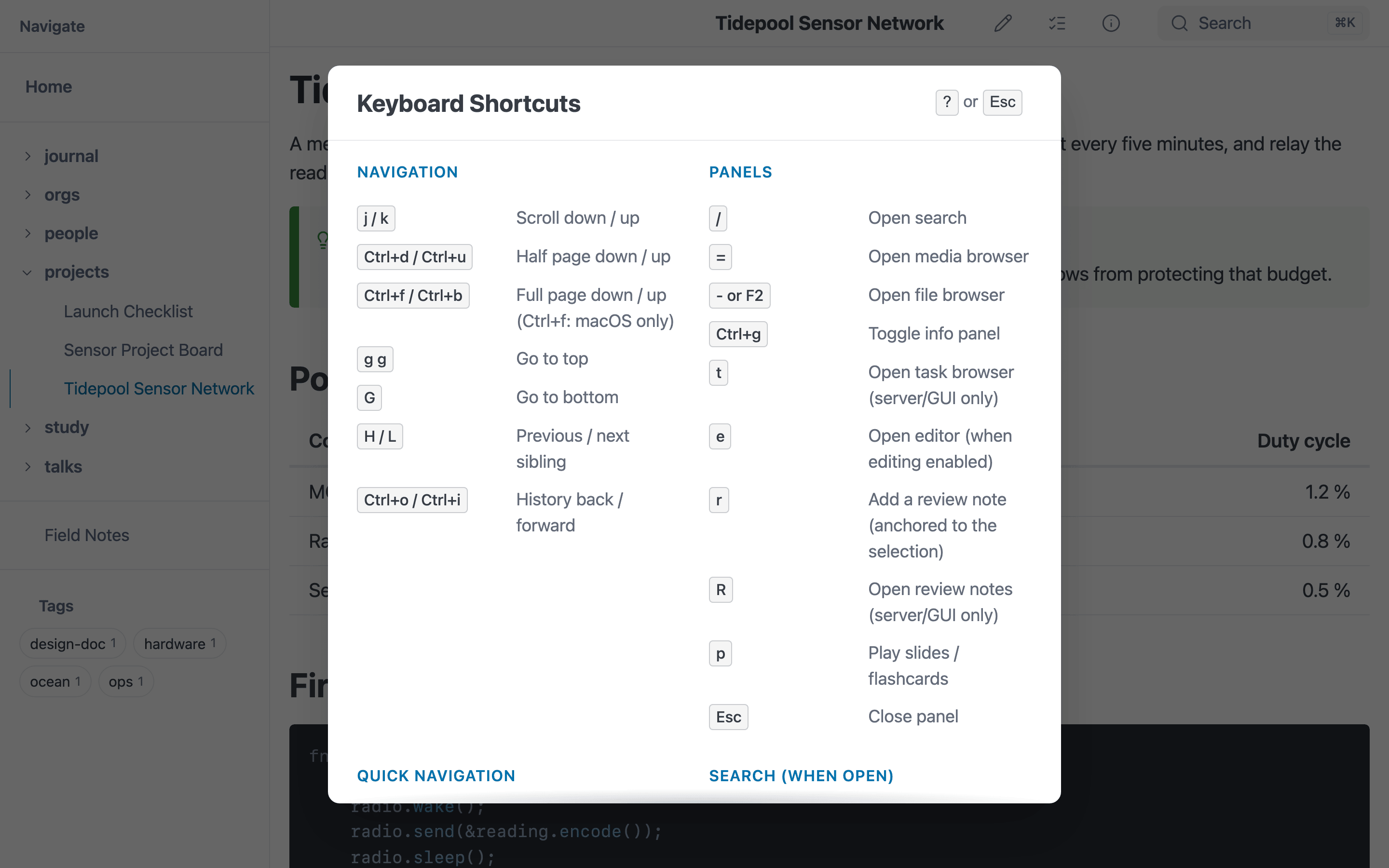
The in-app help overlay, opened with ?.
Page Navigation
| Key | Action |
|---|---|
j / k | Scroll down / up (one line) |
Ctrl+d / Ctrl+u | Half page down / up |
Ctrl+f / Ctrl+b | Full page down / up (Ctrl+f is macOS-only — see note below) |
g g | Go to top of page |
G | Go to bottom of page |
H / L | Previous / next sibling page |
Ctrl+o / Ctrl+i | History back / forward |
Note on Ctrl+f: full-page-down is bound on macOS only, where Cmd+F is the find
key. On Windows and Linux Ctrl+F is left alone so it reaches find-in-page — the
browser’s own in server and static modes, mbr’s in GUI mode. Use Ctrl+b, Space or
PageDown to page forward there.
Panels
| Key | Action |
|---|---|
/ | Open search |
- or F2 | Open file browser |
= | Open media browser |
Ctrl+g | Toggle info panel |
t | Open the task browser (server and GUI modes only) |
e | Open the editor for the current note (when editing is enabled; not on folder listings) |
r | Add a review note, anchored to the selection (server and GUI modes only) |
R | Open the review panel (server and GUI modes only) |
p | Play the slides (on a style: slides page) or review the flashcards (on a type: flashcard page) |
Esc | Close current panel |
Quick Navigation (Fuzzy Nav)
| Key | Action |
|---|---|
f | Open links out (outbound links from current page) |
F | Open links in (backlinks to current page) |
T | Open table of contents (headings) |
Without a keyboard, the iOS app’s ⋯ menu offers the same three panels as Contents, Links Out and Links In. On a phone the panel fills the screen and closes with its ✕.
Search Panel (when open)
| Key | Action |
|---|---|
Ctrl+n / Ctrl+p | Navigate results down / up |
↑ / ↓ | Navigate results |
Enter | Open selected result |
Ctrl+d / Ctrl+u | Scroll results half page |
Esc | Close search |
File Browser (when open)
| Key | Action |
|---|---|
j / k / ↑ / ↓ | Navigate tree |
Ctrl+n / Ctrl+p | Navigate tree |
h | Collapse folder / go to parent |
l or Enter | Expand folder / open file |
o | Open in new tab |
Ctrl+d / Ctrl+u | Scroll panel half page |
Esc | Close browser |
Task Browser (when open)
The task browser (t) is a live view of the tasks in your markdown, so it exists in
server and GUI modes only — a static build has no files to re-read. Disable it with
--no-tasks. See Task Browser for the full guide.
| Key | Action |
|---|---|
Ctrl+n / Ctrl+p | Navigate tasks and headings |
↑ / ↓ | Navigate tasks and headings |
← / → | Collapse / expand the focused group |
Enter | Open the focused task in its file, or toggle the focused heading |
Space | Complete / reopen the focused task (when editing is enabled) |
x | Cancel / reopen the focused task (when editing is enabled) |
Tab | Switch between the folder pane and the results pane |
Ctrl+d / Ctrl+u | Scroll the active pane half a page |
Ctrl+f / Ctrl+b | Scroll the active pane a full page |
Esc | Close the filter options, then the panel |
The filter field keeps focus the whole time, so Space, x, ← and → reach it
until you move onto a task with the arrow keys — and typing in the field hands them
back. Filtering for “buy milk” therefore works as you would expect.
Review Notes (when open)
Review notes (r to add one, R for the list) anchor to the data-mbr-line
source lines the renderer emits, which a static build never emits — so the feature
exists in server and GUI modes only. Disable it with --no-review. See
Review Notes for the full guide.
| Key | Action |
|---|---|
Ctrl+n / Ctrl+p | Navigate file headings and notes |
↑ / ↓ | Navigate file headings and notes |
Enter | Open the focused note (scrolls when it is on this page, navigates otherwise) |
e | Edit the focused note |
d | Delete the focused note — press d again to confirm |
c | Copy the whole review as markdown |
Ctrl+d / Ctrl+u | Scroll the list half a page |
Ctrl+f / Ctrl+b | Scroll the list a full page |
Esc | Back out of a clear-all confirmation, then close the edit form, then the panel |
d arms and a second d fires, because nothing in the feature has an undo. The
bare letters yield to whatever you are typing in: while the edit form is open, or
focus is in a text field, e, d and c are ordinary characters.
Clear all — which deletes every note in every file — is a header button with its own confirmation and has deliberately no shortcut: every key above affects a single note, and a whole-review delete should not be one keystroke away from a typo.
Flashcards (when open)
p on a type: flashcard page opens its deck. The navigation keys mirror the
ones slides use. See Flashcards for the full guide.
| Key | Action |
|---|---|
Space / → / PageDown / n | Advance: flip a card showing its front; on the back, next card (In order / Random) |
Enter / click | Flip the card either way |
← / PageUp | Previous card (In order / Random) |
Home / End | First / last card (In order / Random) |
1 / 2 / 3 / 4 | Rate Again / Hard / Good / Easy and move on (spaced repetition, on the back) |
Esc | Leave the deck |
In spaced-repetition mode Space and → never leave the back of a card — only a
rating does — so a stray key cannot skip a card you were meant to grade.
Task Checkboxes (in a page)
With editing enabled, the checkboxes in a rendered page are clickable.
| Action | Result |
|---|---|
| Left click | Complete / reopen the task |
| Right click | Cancel / reopen the task |
Editor (when open)
With editing enabled, e opens the editor for the current page.
| Key | Action |
|---|---|
Cmd+S / Ctrl+S | Save |
Esc | Close the ⋯ menu if it is open, otherwise close the editor (asking first if there are unsaved changes) |
↑ / ↓ | Move through the ⋯ menu |
Cmd+; / Ctrl+; | Add a property (in the Properties form) |
The Properties panel has more keys of its own; see Editing Properties.
Fuzzy Nav Modal (when open)
| Key | Action |
|---|---|
Tab | Switch between tabs (Links Out / Links In / ToC) |
Shift+Tab | Switch tabs in reverse |
Ctrl+n / Ctrl+p | Navigate results |
↑ / ↓ | Navigate results |
Enter | Open selected item |
Esc | Close modal |
Help
| Key | Action |
|---|---|
? | Toggle keyboard shortcuts overlay |
Find in Page (GUI mode)
GUI mode (mbr -g) has no browser chrome, so it ships its own find bar, driven from the
native Edit menu. In server and static modes this bar is not present at all and your
browser’s built-in find works as usual.
| Action | macOS | Windows/Linux |
|---|---|---|
| Open find bar | Cmd+F | Ctrl+F |
| Find next | Cmd+G | F3 |
| Find previous | Shift+Cmd+G | Shift+F3 |
| Find next / previous (bar focused) | Enter / Shift+Enter | Enter / Shift+Enter |
| Close find bar | Esc | Esc |
F3 is used off macOS because Ctrl+G is already the info panel toggle. On macOS the
info panel keeps Ctrl+G, and Cmd+G belongs to find-next as the platform expects.
Reloading the page (including live reload) closes the bar and clears its highlights.
macOS GUI Mode
In GUI mode (mbr -g), standard macOS shortcuts are available:
| Key | Action |
|---|---|
Cmd+O | Open folder or file |
Cmd+R | Reload page |
Cmd+[ | History back |
Cmd+] | History forward |
Cmd+F | Find in page |
Cmd+G / Shift+Cmd+G | Find next / previous |
Cmd+Option+I | Toggle developer tools |
Cmd+W | Close window |
Cmd+Q | Quit application |
Standard Edit menu shortcuts (Cut, Copy, Paste, Undo, Redo, Select All) work as expected in text fields.
Linux GUI Mode
In GUI mode (mbr -g) on Linux the menu bar is hidden by default — it is a
GtkMenuBar drawn inside the window, which no modern GTK application of this shape
shows, and a tiling Wayland compositor has no global menu to move it to.
Every shortcut below works whether or not the bar is on screen. GTK will not activate an accelerator belonging to a hidden menu item, so mbr answers these keys itself while the bar is hidden and hands them back to GTK when it is shown — one route at a time, so a key never fires twice.
| Key | Action |
|---|---|
F10 | Show / hide the menu bar |
Ctrl+O | Open folder or file |
Ctrl+R | Reload page |
Ctrl+Shift+P | |
Ctrl+F | Find in page |
F3 / Shift+F3 | Find next / previous |
Alt+← / Alt+→ | History back / forward |
Ctrl+Shift+I | Toggle developer tools |
Ctrl+W / Ctrl+Q | Quit |
Editing keys (Ctrl+C, Ctrl+V, Ctrl+X, Ctrl+Z, Ctrl+A) are handled by WebKit
inside the page and never depended on the menu bar.
Print is Ctrl+Shift+P, not Ctrl+P: plain Ctrl+P is “previous item” in mbr’s own
lists (paired with Ctrl+N), and a native accelerator would take it from the page.
Set gui_menu_bar to "always" to start with the bar visible, or
"never" to turn it off for good (F10 then does nothing).
Because mbr claims F10, GTK’s own “F10 moves keyboard focus into the menu bar”
behaviour is off in this window. The bar is still usable with the pointer, and every
item has its own accelerator.