Server Mode
Server mode starts a local web server, allowing you to browse your markdown files in any web browser with live reload.
Starting the Server
mbr -s /path/to/notes
By default, the server runs at http://127.0.0.1:5200/.
Features
Live Reload
When you save changes to a file, the browser automatically reloads:
- mbr watches for file changes via the filesystem
- Changes trigger a WebSocket notification
- Connected browsers refresh the current page
This works for:
- Markdown file content
- YAML frontmatter changes
- Template modifications (in
.mbr/) - CSS/style changes
Full-Text Search
Press / or click the search icon to open search:
- Search across all markdown files
- Filter by metadata, content, or both
- Filter on any frontmatter field with
field:value(tags:rust,company:acme); quote values with spaces:type:"Meeting Notes" - Pick a note type from the scope menu — every
typein your notes is listed with a count, and choosing one writes thetype:filter for you - Scope to the current folder (on a note, the folder the note is in), to any folder via the folder button next to Current folder only, or everywhere
- Results show snippets with highlighted matches
See Searching contacts for examples.
Directory Browsing
Navigate your markdown repository:
- Folder listings with file counts
- Subdirectory navigation
- Breadcrumb trail for context
- Sort by name, date, or title
Tag Navigation
If your files use YAML frontmatter with tags:
---
tags: project, important, review
---
The sidebar shows a tag tree for filtering files.
Recent Files
mbr tracks recently viewed files (stored in browser localStorage), providing quick access to your working set.
Editing Is Off Unless Asked For
Unlike the GUI, mbr -s serves read-only by default. Turn
in-browser editing on with --edit, edit_enabled = true in
.mbr/config.toml, or MBR_EDIT_ENABLED=true; --no-edit turns it off
whatever the configuration says. On a non-loopback --host, editing also needs
an edit_token_hash.
External Links
Server mode deliberately does nothing with external links. https:// links,
mailto:, message:, zoommtg: and every other scheme are left entirely to the
browser you are visiting with, which already opens them the way you expect. Same
for static builds.
This is the opposite of GUI mode, where there is no
browser to defer to and mbr hands the URL to the operating system itself. That
hand-off is GUI-only by design and enforced at runtime: the launcher refuses,
before touching the OS, unless a GUI window is actually running in the process,
and logs the refusal at warn.
The reason is worth stating plainly: a server must never be induced to launch
applications on its host. Launching an application is something an interactive
window does for the person in front of it. mbr -s has no such person, and if a
page could make the serving process start programs, anyone who could reach that
page — especially on a shared or non-loopback bind — could start programs on the
machine running it. So the capability simply is not available outside GUI mode,
regardless of what a page, a template override, or a future code path asks for.
File Browser Sidebar
Press - (minus key) to open the file browser sidebar. This is a three-pane navigator for exploring your entire markdown collection.
Layout
┌──────────────────────────────┐
│  × Close                     │
├──────────────────────────────┤
│  🔍 Filter...                │
├──────────────────────────────┤
│  SHORTCUTS                   │
│    ⭐ My Important File      │
│    ⭐ Daily Notes            │
├──────────────────────────────┤
│  RECENT                      │
│    📄 guide.md               │
│    📄 notes.md               │
├──────────────────────────────┤
│  TAGS                        │
│    ▸ project (12)            │
│    ▸ review (5)              │
│    ▾ important               │
│        ▸ urgent (3)          │
├──────────────────────────────┤
│  FOLDERS                     │
│    ▸ docs/ (24)              │
│    ▸ notes/ (156)            │
│    ▾ projects/               │
│        ▸ website/ (8)        │
└──────────────────────────────┘
Browser Sections
| Section | Description |
|---|---|
| Filter | Quick text filter across all visible items |
| Shortcuts | Files you’ve pinned for quick access |
| Recent | Recently viewed files (persisted in localStorage) |
| Tags | Hierarchical tag tree with file counts |
| Folders | Directory structure mirroring your filesystem |
Selecting a folder or tag opens a second pane listing its notes. For a folder, the pane lists the folder’s direct subfolders first (with their note counts), then the notes directly inside it; tapping a subfolder moves the pane into it and expands the folder tree to match. On a phone the pane covers the tree, so this is how you walk down the folders. Long lists show 100 entries at a time, with Show more to reveal the next 100. The note you are reading is marked with a tinted card and an accent bar.
Keyboard Shortcuts
| Key | Action |
|---|---|
- | Toggle sidebar open/closed |
Escape | Close sidebar |
↑ / ↓ | Navigate items |
Enter | Open selected file or expand folder |
→ | Expand folder or tag |
← | Collapse folder or tag |
Pinning Shortcuts
Right-click any file in the browser to add it to your shortcuts. Shortcuts appear at the top for instant access to frequently used files.
To remove a shortcut, right-click it and select “Remove from shortcuts.”
Tag Hierarchy
Tags support hierarchical organization using / as a separator:
---
tags: project/website, project/website/frontend
---
This creates a nested tag tree:
- project (parent)
- website (child with count)
- frontend (grandchild)
- website (child with count)
Click a parent tag to see all files with that tag or any descendant tags.
Persistence
The browser remembers your preferences across sessions:
| Data | Storage | Cleared By |
|---|---|---|
| Recent files | localStorage | Clear browser data |
| Shortcuts | localStorage | Clear browser data |
| Expanded folders | Session only | Page refresh |
| Selected tags | Session only | Page refresh |
Full-Text Search
Press / (forward slash) to open the search dialog.
Search Features
| Feature | Description |
|---|---|
| Fuzzy matching | Finds partial matches and typos |
| Ranked results | Best matches appear first |
| Snippets | Shows matching text with highlighted terms |
| Metadata search | Searches titles, tags, and descriptions |
| Folder scoping | Limit search to current directory |
Search Syntax
| Query | Matches |
|---|---|
rust async | Files containing both “rust” AND “async” |
"exact phrase" | Files containing the exact phrase |
tag:project | Files with the “project” tag |
title:guide | Files with “guide” in the title |
Keyboard Navigation
| Key | Action |
|---|---|
/ | Open search |
Escape | Close search |
↑ / ↓ | Navigate results |
Enter | Open selected result |
Link Explorer
Press f, F, or T to open the Link Explorer - a quick navigation modal for jumping between pages and headings.
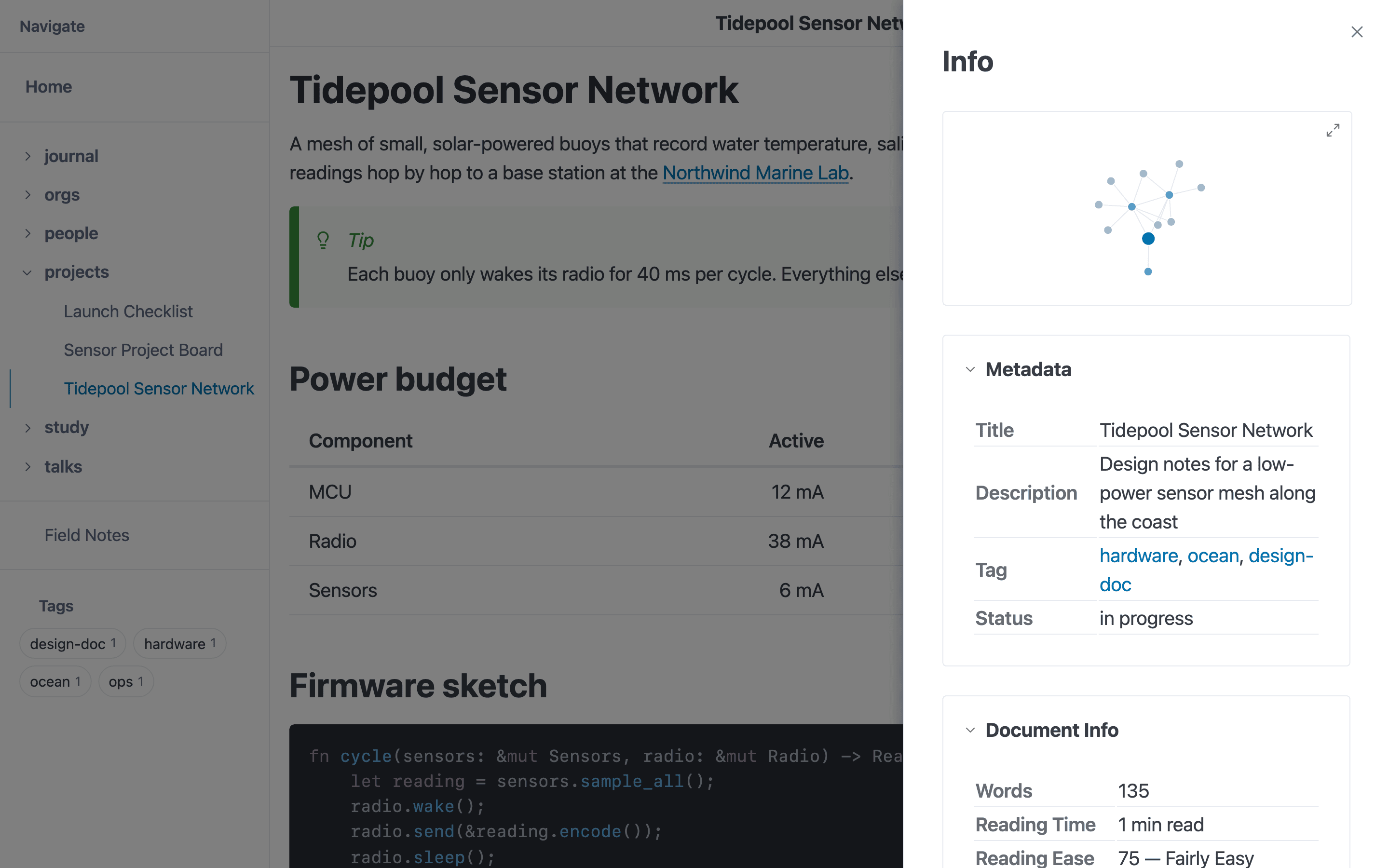
The info panel (Ctrl/Cmd+G): a mini link graph, frontmatter and document stats.
Tabs
| Key | Tab | Description |
|---|---|---|
f | Links Out | All links from the current page to other pages |
F | Links In | Backlinks - pages that link to the current page |
T | ToC | Table of contents - all headings in the current document |
Features
- Fuzzy search - Type to filter items with intelligent matching
- Visibility awareness - In ToC mode, currently visible headings are prioritized and marked
- Internal vs External - External links open in new tabs, internal links navigate in place. In GUI mode there are no tabs, so external links go to your default browser instead
- Link handling is your browser’s - Server mode never touches external links itself; see External links below
- Tab cycling - Press
Tabto cycle between the three views
Layout
┌──────────────────────────────────────────┐
│  [Links Out]  [Links In]  [ToC]          │
├──────────────────────────────────────────┤
│  🔍 Filter...                            │
├──────────────────────────────────────────┤
│  → Getting Started                       │
│  → Installation Guide                    │
│  → API Reference               ↗ (ext)   │
│  ← docs/intro (backlink)                 │
├──────────────────────────────────────────┤
│  ^n ^p navigate  Tab switch  Enter open  │
└──────────────────────────────────────────┘
Keyboard Shortcuts
| Key | Action |
|---|---|
f | Open Links Out tab |
F (Shift+f) | Open Links In (backlinks) tab |
T (Shift+t) | Open Table of Contents tab |
Tab | Cycle to next tab |
Shift+Tab | Cycle to previous tab |
↑ / ↓ | Navigate items |
Ctrl+n / Ctrl+p | Navigate items (vim-style) |
Ctrl+d / Ctrl+u | Scroll the list |
Enter | Navigate to selected item |
Escape | Close the explorer |
Link Tracking
The Links Out and Links In tabs require link tracking to be enabled (default). This is controlled by the link_tracking config option:
# .mbr/config.toml
link_tracking = true  # default
When enabled, mbr automatically tracks:
- Outbound links - All markdown links
[text](url)in the current page - Inbound links - All pages that link to the current page (backlinks)
This enables wiki-style bidirectional link navigation without requiring any special syntax.
Server Endpoints
| Endpoint | Method | Description |
|---|---|---|
/ | GET | Home page (root directory listing) |
/{path}/ | GET | Markdown page or directory |
/{path} | GET | 301 to the canonical /{path}/ when it names a markdown page |
/.mbr/site.json | GET | Full site metadata as JSON |
/.mbr/search | POST | Search endpoint |
/.mbr/ws/changes | WS | WebSocket for live reload |
/.mbr/* | GET | Static assets (CSS, JS, fonts) |
Static Files and Byte Ranges
Files that are not markdown (images, PDFs, video, audio) are served as they
are, with Accept-Ranges: bytes. A Range request gets 206 Partial Content
and a Content-Range header, which is what lets a <video> element seek
without downloading the whole file:
GET /videos/demo.mp4  Range: bytes=0-99    → 206 Content-Range: bytes 0-99/52428800
GET /videos/demo.mp4  Range: bytes=1000-   → 206 (from byte 1000 to the end)
GET /videos/demo.mp4  Range: bytes=-500    → 206 (the last 500 bytes)
GET /videos/demo.mp4  Range: bytes=99999999999-  → 416 Content-Range: bytes */52428800
A range that cannot be satisfied, does not parse, or asks for several parts at
once is answered 416 Range Not Satisfiable.
When mbr runs inside the iOS app, a file the cloud provider has listed but not
downloaded yet is answered 503 Service Unavailable with a Retry-After
header (a note shows a “Downloading” page), and its download is requested.
Canonical URL Redirects
Markdown pages have exactly one URL: the directory-style one with a trailing
slash (docs/guide.md → /docs/guide/). Any other spelling gets a 301:
GET /docs/guide      → 301 Location: /docs/guide/
GET /docs/guide.md   → 301 Location: /docs/guide/
GET /docs            → 301 Location: /docs/          (docs/index.md)
GET /docs/index/     → 301 Location: /docs/
GET /docs/guide?x=1  → 301 Location: /docs/guide/?x=1
This is not cosmetic. The trailing slash decides the base a browser uses for the
page’s own relative links: from /docs/guide/ a ../other/ href reaches
/docs/other/, but from /docs/guide it reaches /other/. Serving the page in
place at the slashless URL would break every link on it, one click later.
Static files (/images/photo.png, /LICENSE), directory listings and /.mbr/*
routes are never redirected.
Search API
The search endpoint accepts POST requests:
{
  "q": "search query",
  "limit": 50,
  "scope": "all",
  "filetype": "markdown",
  "folder": "/docs"
}
Response:
{
  "query": "search query",
  "total_matches": 42,
  "results": [
    {
      "url_path": "/docs/guide/",
      "title": "Guide",
      "description": "...",
      "tags": "...",
      "score": 95,
      "snippet": "..."
    }
  ],
  "duration_ms": 15
}
Two fields appear only when they apply: scan_in_progress: true while the
initial repository scan is still running (results may be incomplete), and
not_downloaded: N when content search had to skip N notes whose contents
are not on the device yet (the iOS app with a cloud provider; never on the
desktop).
Configuration
Port Configuration
Default port is 5200. Change via configuration:
# .mbr/config.toml
port = 3000
Or environment variable:
MBR_PORT=3000 mbr -s ~/notes
If the configured port is in use, mbr automatically tries the next port.
IP Binding
By default, mbr binds to 127.0.0.1 (localhost only). To allow network access:
# .mbr/config.toml
ip = "0.0.0.0"
Warning: Binding to
0.0.0.0exposes your files to the network.
oEmbed Timeout
Control how long mbr waits for URL metadata:
mbr -s --oembed-timeout 1000 ~/notes # 1 second
Development Workflow
A typical writing workflow:
# Terminal 1: Start server
mbr -s ~/notes

# Terminal 2: Edit files
vim ~/notes/new-article.md
Changes appear in the browser automatically.
With Editor Integration
Many editors can open URLs on save. Configure your editor to:
- Save the file
- Trigger browser refresh (or let live reload handle it)
Multiple Repositories
Run multiple servers on different ports:
mbr -s ~/notes &                    # Default port 5200
MBR_PORT=5201 mbr -s ~/docs &       # Custom port 5201
Caching
mbr provides proper cache headers for browser caching:
- ETag: Content-based cache validation
- Last-Modified: Time-based cache validation
Browsers can cache static assets and validate on subsequent requests.
Troubleshooting
Port Already in Use
If you see “Address already in use”:
- Another mbr instance may be running
- Another application is using the port
- Try a different port:
MBR_PORT=3000 mbr -s ~/notes
Live Reload Not Working
If changes don’t appear:
- Check WebSocket connection in browser DevTools
- Ensure file is being saved (not just buffered)
- Verify file is in the watched directory
- Check for errors with
-vflag
Slow Initial Load
For large repositories:
- First load scans all files for metadata
- Subsequent loads are faster (browser caching)
- Consider using
ignore_dirsto skip large directories